
Promotional emails are the sales, coupons, “we miss you” reminders and flash-sale countdowns that arrive after you buy something once, create an account or type your address into a pop-up. None of them is spam in the legal sense — you agreed to them somewhere — which is exactly why they keep coming. The Radicati Group estimates that the world sends and receives roughly 392 billion emails a day in 2026, and a large share of what lands in a personal inbox is marketing.
The good news: you can stop most of it without missing the emails you actually need — receipts, order and shipping updates, password resets and security codes. This guide walks through four methods, from a quick cleanup you can do in ten minutes to a setup that keeps promotions out for good, and explains when each one is the right tool.
What’s in this guide
- Why promotional emails pile up
- Promotional email vs. spam
- Method 1: Unsubscribe the right way
- Method 2: Let your inbox sort them
- Method 3: Give every company its own address
- Method 4: Block promotional emails before they arrive
- Which method should you use?
- Key takeaways
- Frequently asked questions
Related Article
How to Protect Your Email from Spam Without Changing Your Address
Drowning in spam but don’t want to change your email address? Learn practical strategies to protect your inbox, from email aliases to smart filtering techniques.
Why promotional emails pile up
Almost every promotional email traces back to a moment when you handed over your address. The most common ones:
- Checkout. Buying something online creates an account, and the “send me offers” box is often ticked by default.
- Accounts and free trials. Apps and services use your sign-up address for onboarding sequences, feature announcements and win-back campaigns once you stop using them.
- Discount pop-ups. “Get 10% off your first order” is a trade: the coupon for a permanent spot on the mailing list.
- Shared and sold lists. Some companies pass addresses to partners, so one sign-up can lead to mail from brands you’ve never heard of.
Each of these is small on its own. Over a few years they add up to dozens of senders, each mailing several times a week — and the important emails get buried between them.
Promotional email vs. spam
It’s worth separating the two, because they need different treatment. Promotional email comes from a company you have a relationship with — you bought from them, created an account or subscribed. In the US, the CAN-SPAM Act requires these emails to include a working way to opt out and requires senders to honor an opt-out request within 10 business days.
Spam comes from senders you never dealt with. They don’t follow the rules, so unsubscribe links in spam are unreliable at best. The FTC’s advice for unwanted email from unknown senders is to mark it as spam or junk instead. If spam is your bigger problem, start with our guide to protecting your email from spam.
Method 1: Unsubscribe the right way
Unsubscribing is still the cleanest fix for a newsletter or store you genuinely don’t want to hear from again. Done in bulk, it can cut the volume noticeably in one sitting.
- Use your provider’s tools. Gmail added a Manage subscriptions view in 2025 that lists your mailing lists by how often they email you and unsubscribes in one click. Most email apps also show an “Unsubscribe” button next to the sender name of a marketing email.
- Only unsubscribe from senders you recognize. For legitimate companies the link works. For senders you don’t know, clicking anything confirms that your address is active — mark those as spam instead.
- Give it two weeks. Because senders have up to 10 business days to process an opt-out, a few more emails after unsubscribing are normal. If they keep coming after that, mark them as spam.
The limitation is obvious: unsubscribing is manual and it only works on senders that already found you. The next purchase, trial or discount pop-up starts the cycle again.
Method 2: Let your inbox sort them
If you don’t want to unsubscribe from everything — maybe you do like a store’s sales, just not in your main inbox — let your email app separate them:
- Gmail sorts marketing into the Promotions tab automatically. You can also create a filter (search for a sender, then “Create filter”) to skip the inbox, label or delete a specific sender’s mail.
- Outlook splits mail into Focused and Other, and its Sweep tool can delete all email from a sender, keep only the latest message, or automatically remove future ones.
- Any client supports rules or filters based on the sender, subject or words like “unsubscribe” in the message.
Sorting is free and reversible, but it’s a hiding place, not a fix. The emails still arrive, still count toward your storage, and still sit one tap away from your attention. Filters also need maintenance: every new sender needs a new rule, and a broad keyword filter can catch a receipt by mistake.

Method 3: Give every company its own address
The most effective long-term habit is to stop giving companies your real address at all. An email alias is a separate address that forwards to your inbox: you give shop-name@your-alias to a store instead of your personal Gmail, and their emails arrive exactly as before.
The difference shows up when that sender becomes a problem:
- Turn the alias off and every email to it stops, unsubscribe link or not — including mail from the partners the address was shared with.
- See who shared your address. If promotions from an unknown brand arrive at the alias you only gave to one store, you know where your address went.
- Nothing else breaks. Your real inbox and every other alias keep working.
We cover more ways to use this in 13 smart ways to use email aliases and in our guide to email aliases for online shopping. Aliases work best for new sign-ups. For the senders who already have your real address, combine them with method 1.
Method 4: Block promotional emails before they arrive
Aliases solve the “who” problem, but you often still want an account’s receipts and security codes while skipping its marketing. That’s what a promotional email filter is for: it looks at each incoming email and stops the marketing ones before they’re forwarded, while the transactional ones keep coming.
Alias Email has one built in. Turn on Block promotional emails in Settings and it applies to all of your aliases at once:
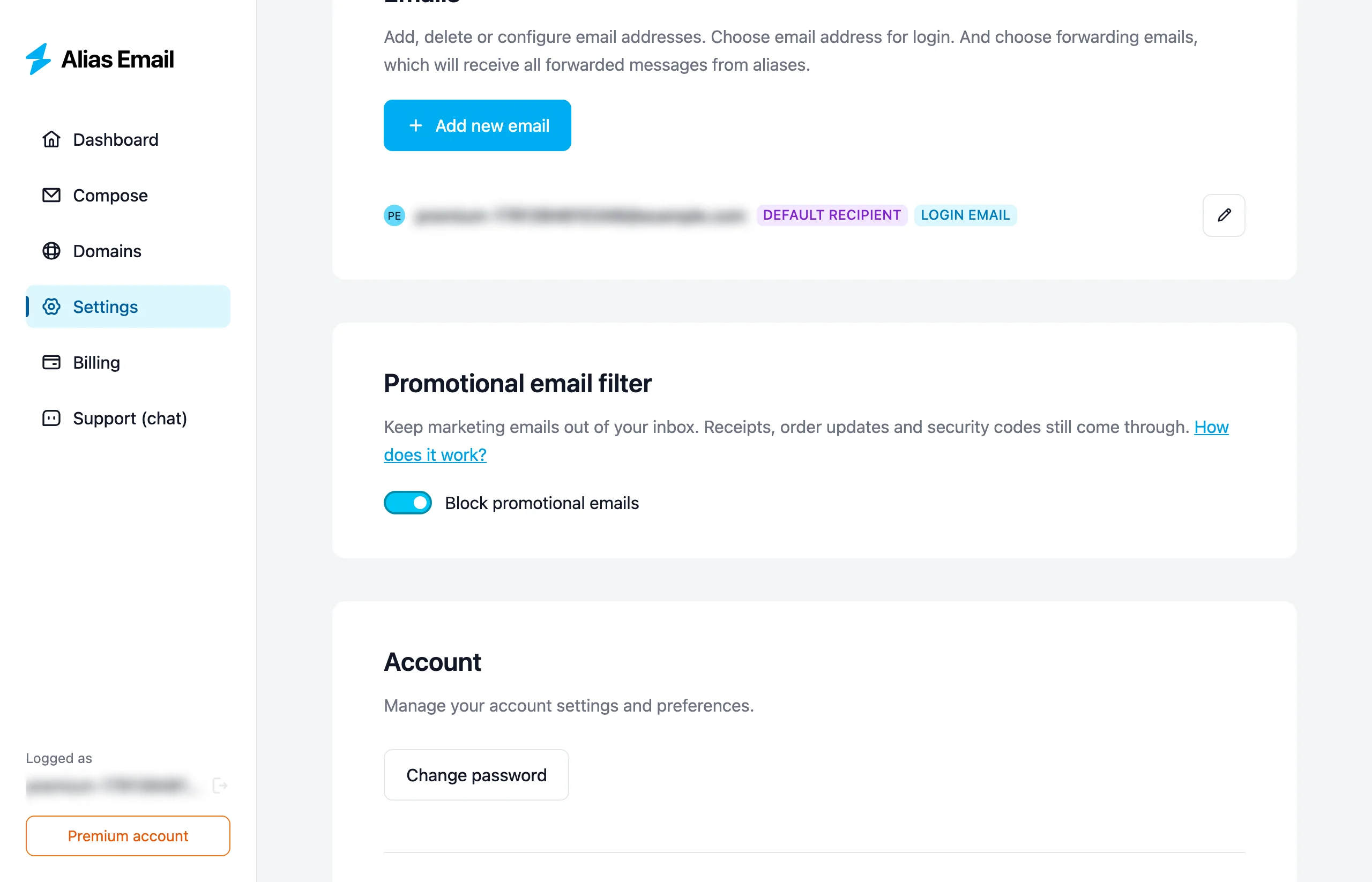
- Blocked: adverts, sales, discounts, coupons, special offers and win-back campaigns.
- Always delivered: receipts and invoices, order and shipping updates, password resets, login and security codes, replies in a conversation and automatic notifications.
- When in doubt, it delivers. The filter only blocks an email when it’s confident it’s marketing — a stray promotion getting through is better than a missing receipt.
- Private by design. To decide, it looks only at the sender, the subject line and a few technical headers. The text of your emails is never read or analyzed.
Blocked emails are not forwarded and can’t be recovered later, so the filter is off by default. Each alias on your dashboard shows how many promotional emails it has blocked, so you can see it working. The filter is part of Premium; the details are in our help article on how to block promotional emails.
Which method should you use?
Each method solves a different part of the problem. Most people get the best result by combining them:
| Method | Best for | Effort | Limitation |
|---|---|---|---|
| Unsubscribe | Senders you never want to hear from again | A one-time cleanup | Only works on senders that already found you |
| Inbox tabs and filters | Brands you like, just not in your main inbox | Rules need upkeep | Emails still arrive and take up space |
| One alias per company | New sign-ups, shopping, trials | A few seconds per sign-up | Doesn’t help with your existing address |
| Promotional email filter | Accounts whose receipts you need but whose marketing you don’t | Turn it on once | Blocked emails can’t be recovered |
A practical order: unsubscribe from the worst offenders today, start using aliases for every new sign-up, and turn on the promotional filter for the accounts that mix receipts with marketing.
Related Article
How to Organize Your Inbox with Email Aliases
Email aliases aren’t just for privacy — they’re a powerful inbox organization tool. Learn how to use aliases with filters to automatically sort your email and reach inbox zero.
Key takeaways
- Promotions aren’t spam. Legitimate senders must honor an unsubscribe within 10 business days; unknown senders should be marked as spam instead.
- Sorting hides the problem. Tabs and filters move promotions out of sight, but they still arrive and need maintenance.
- Aliases stop it at the source. A separate address per company can be switched off at any time and shows who shared your address.
- A promotional filter keeps the useful part. Receipts, order updates and security codes still arrive; the marketing doesn’t.
Frequently asked questions
Is it safe to click “unsubscribe” in an email?
For companies you recognize and have dealt with, yes — legitimate senders are required to honor it. For emails from unknown senders, don’t click anything: mark the email as spam or junk instead, because an unsubscribe click can confirm that your address is active.
Why do I still get promotional emails after unsubscribing?
Senders have up to 10 business days to process an opt-out under the CAN-SPAM Act, so a few more emails are normal. If they continue after that, or arrive from partner brands, mark them as spam — or switch to an alias you can turn off.
Will blocking promotional emails stop receipts and order updates?
Not with Alias Email’s filter. Receipts, invoices, order and shipping updates, password resets and security codes are always delivered, and anything the filter isn’t sure about is delivered too. Broad keyword filters in an email app are riskier, because a word like “sale” can appear in a receipt.
Can I recover a promotional email that was blocked?
No. A blocked email isn’t forwarded or kept, and the sender isn’t notified. If an alias receives mail you can’t afford to lose from a sender that mixes coupons and receipts in the same emails, keep the filter off for now.
Does Alias Email read my emails to filter them?
No. With the filter on, it looks only at the sender, the subject line and a few technical headers, such as whether the email has an unsubscribe link. The text of your emails is never read or analyzed, and with the filter off none of this happens. More on what we log is on our transparency page.
Is the promotional email filter free?
The filter is part of Premium, which costs $3.33 a month billed annually. The free plan includes 10 aliases, which is enough to start giving each company its own address.
Take back your inbox
You don’t need to read every promotion to get rid of them. Unsubscribe from the senders you never want, give new sign-ups an alias instead of your real address, and let the filter catch the marketing from the accounts you still need. Alias Email is trusted by 41,000+ people and has forwarded more than 1,854,000 messages since 2020.
Not sure how widely your current address has spread? Check it with our free data breach checker first — then start replacing it, one alias at a time.