
Email alias for Gmail
Your Gmail address is everywhere — every signup, every newsletter, every receipt. Once it lands in a marketing database (or a leaked one), you can't take it back. Gmail's built-in tricks try to help, but they leave your real address one keystroke away. Email aliases fix that without changing how you read mail.What Gmail offers natively
The "+" trick
Append +anything before the @ sign — for example, you+shopping@gmail.com. Mail still lands in your inbox and you can filter by the suffix. Google calls this plus addressing.
The catch: plus addressing is a convenience feature, not a privacy one. Your Gmail address sits right there in plain text inside every alias — you+shopping@gmail.com openly contains you@gmail.com. And by design, every + variant lands in the same Gmail inbox: it's a sorting tag, not a separate identity. A handful of older signup forms also reject + outright due to strict email validation. Filtering works, privacy doesn't.
Dot variations
Gmail ignores dots in the username, so y.o.u@gmail.com delivers to you@gmail.com. Same problem — your base address is one keystroke away.
Google Workspace aliases
If you have a Google Workspace account, an admin can create aliases on your domain. These are real aliases, but they're tied to your organization, capped in number, and you need an admin to manage them.
Why none of this gives you real protection
- Nothing to switch off. A
+variant isn't a separate address, it's your inbox with a tag — so there's no way to "disable" it when it starts attracting spam. - Replies expose you. The moment you respond, the recipient sees your real Gmail address in the sender field.
- No custom domain without Workspace. If you want a personal-brand address like
hello@yourname.com, the+and dot tricks won't help — that's a Google Workspace feature with its own subscription cost.
What Alias Email adds for Gmail users
Alias Email creates fully independent forwarding addresses on its own domains (or yours). Each alias works as a one-way buffer between the outside world and your Gmail inbox.
- Real privacy. The service only sees something like
social.iafakl@bumpmail.io. Your Gmail address never touches their database. - One-click on/off. An alias starts getting spam? Flip the toggle — every future message is dropped before it reaches you. Re-enable any time.
- Anonymous replies. Reply from Gmail as usual; Alias Email sends the reply from your alias, so the recipient never sees your real address.
- Use your own domain. Connect a custom domain (e.g.
contact@yourname.com) and stop showing@gmail.comon business cards. - Nothing changes in Gmail. No filters to set up, no MX records to edit, no extension required. Forwarded mail just arrives.
Setting it up — start to finish
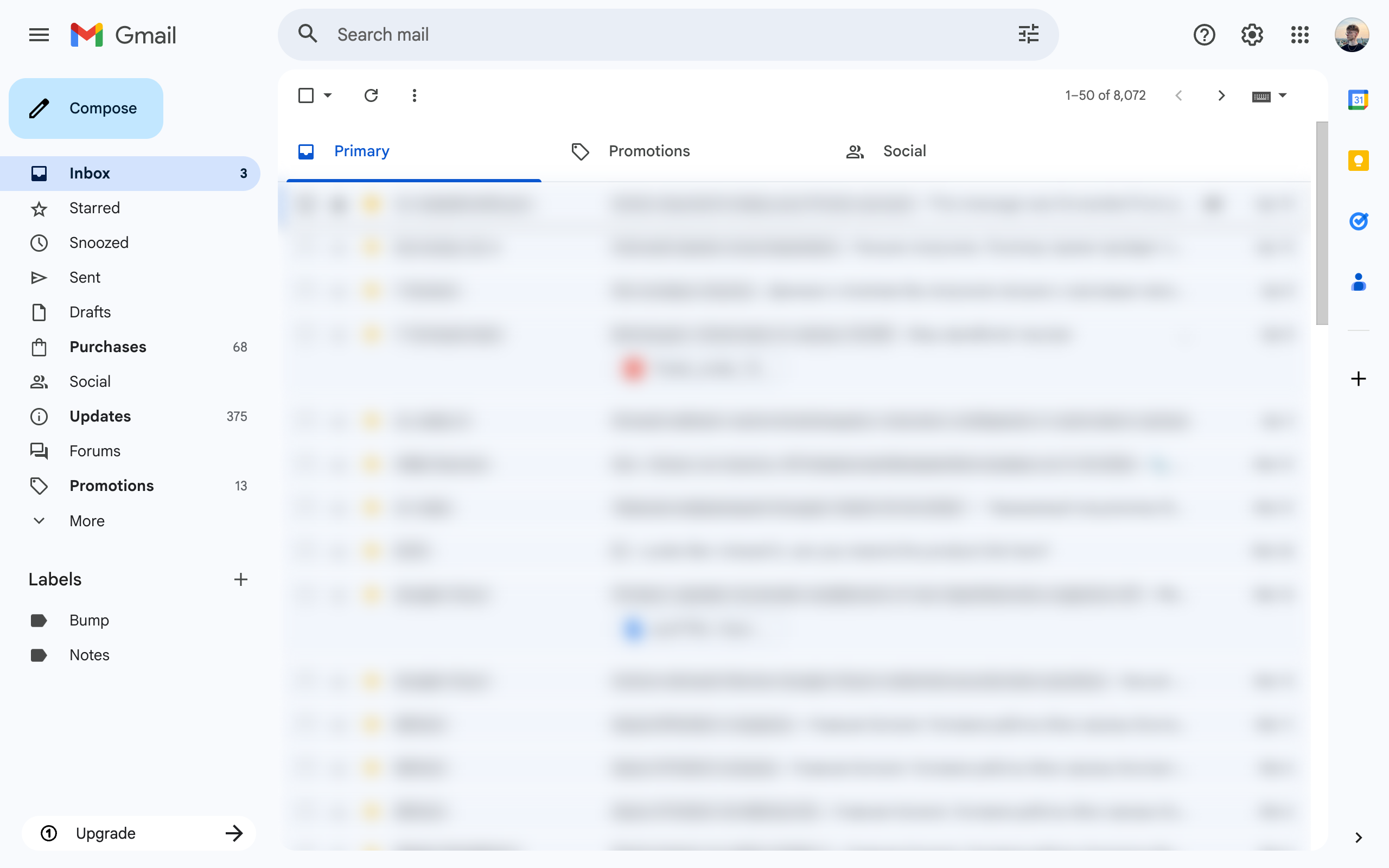
You keep using your existing Gmail account — no migration, no MX changes, no extension. Every message sent to your aliases will land in your normal Gmail inbox alongside regular mail. The whole setup takes about a minute.
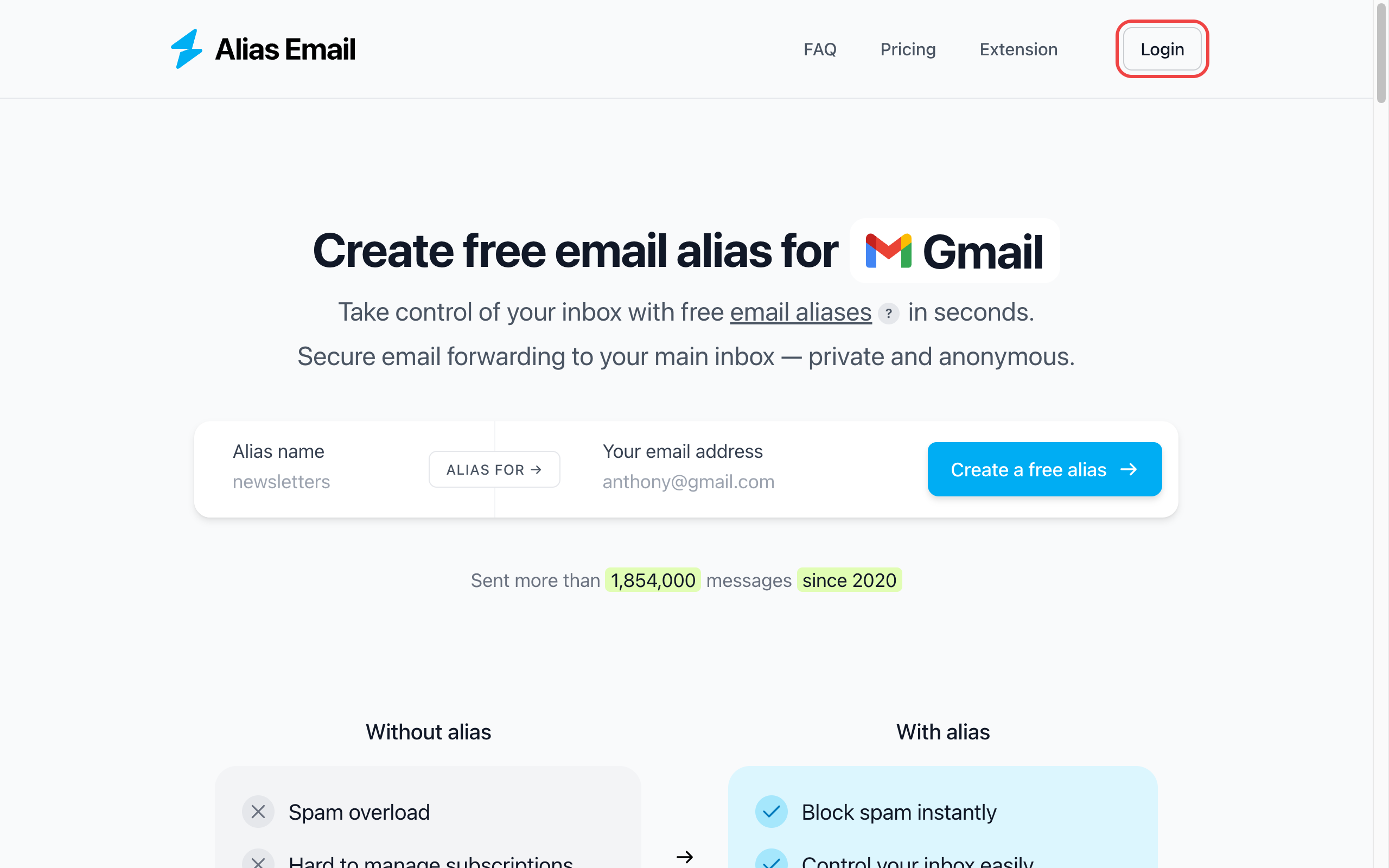
Step 1. Open Alias Email
Go to alias.email in a new tab and click "Login" in the top right corner.
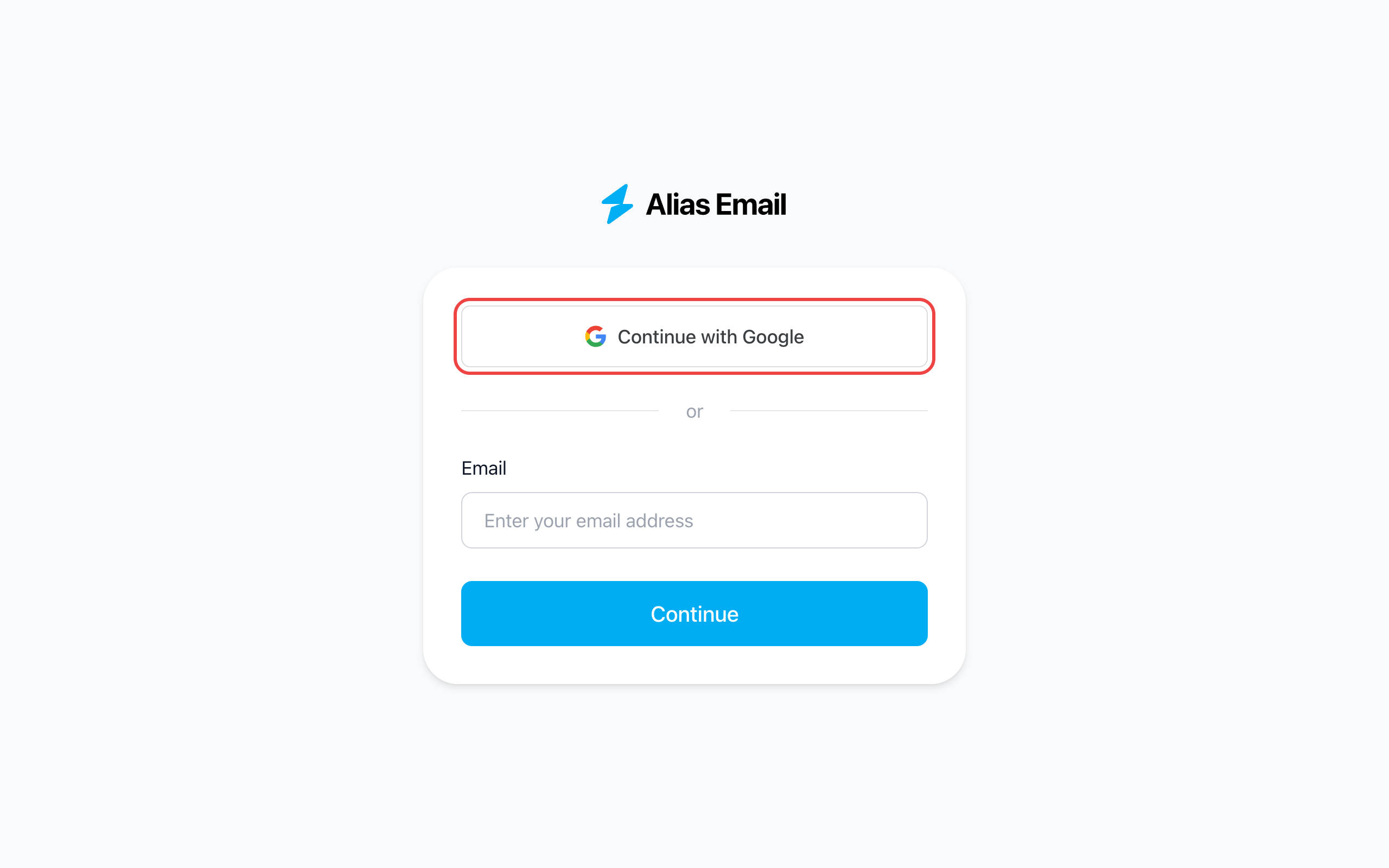
Step 2. Sign up with Google
Click "Continue with Google" and pick your Gmail account. No new password to remember — sign-in is linked to your existing Google login.
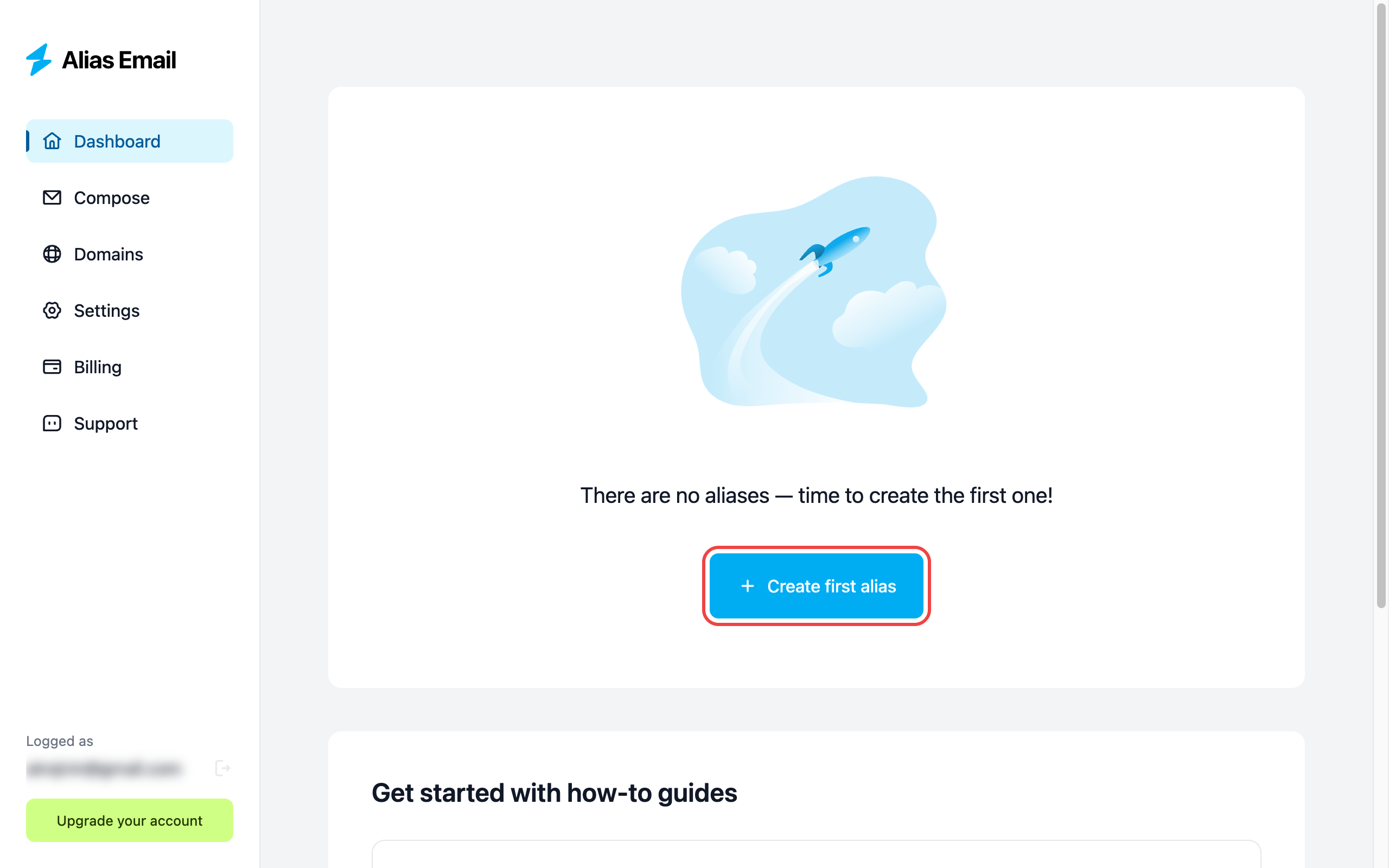
Step 3. Click "Create first alias"
You land on an empty dashboard. Hit the blue "Create first alias" button to open the alias creator.
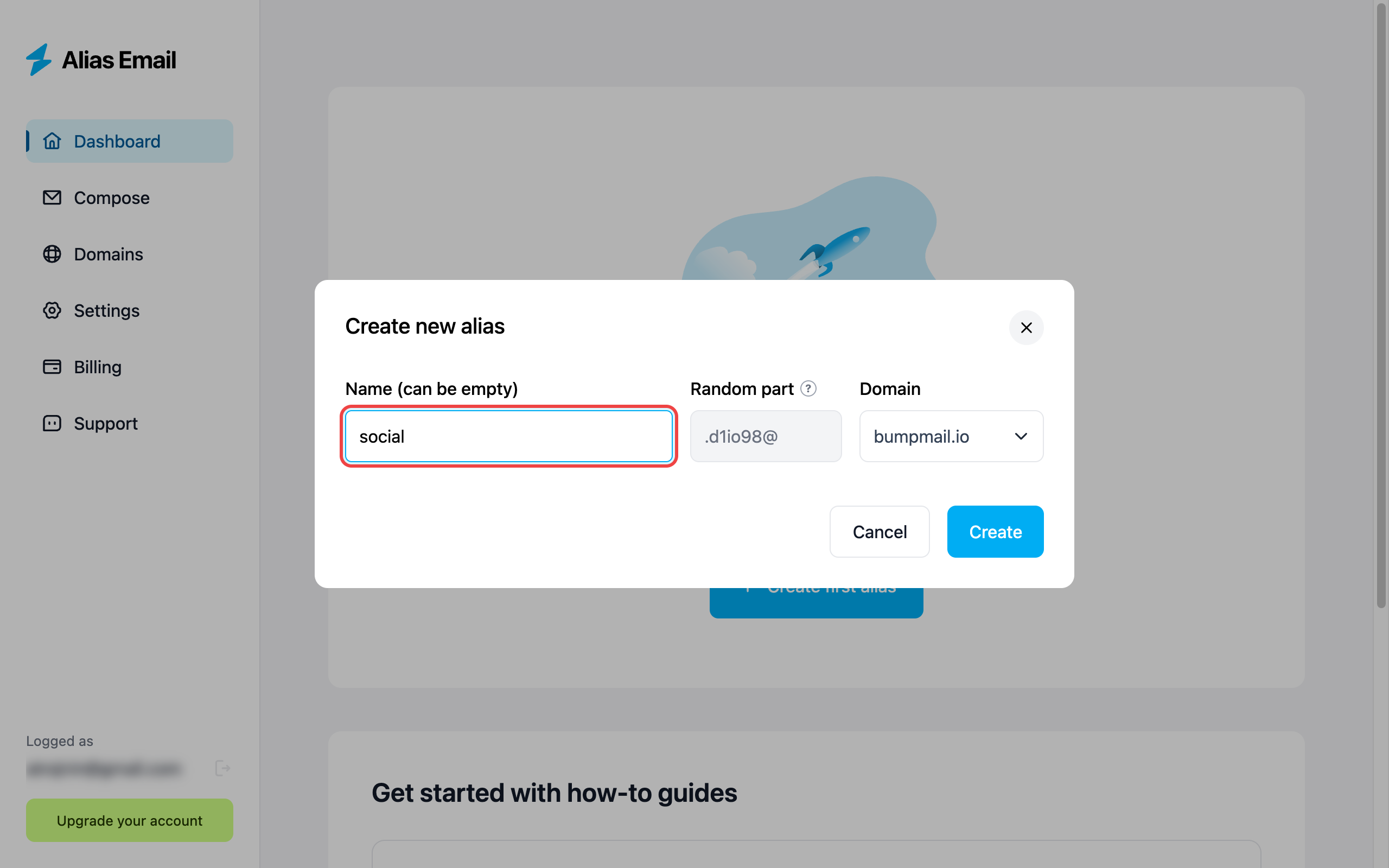
Step 4. Name your alias
Pick a label that describes what the alias is for — social, shopping, newsletters, anything memorable. The random part and domain are filled in automatically, so even if someone guesses your label, they can't guess the full address.
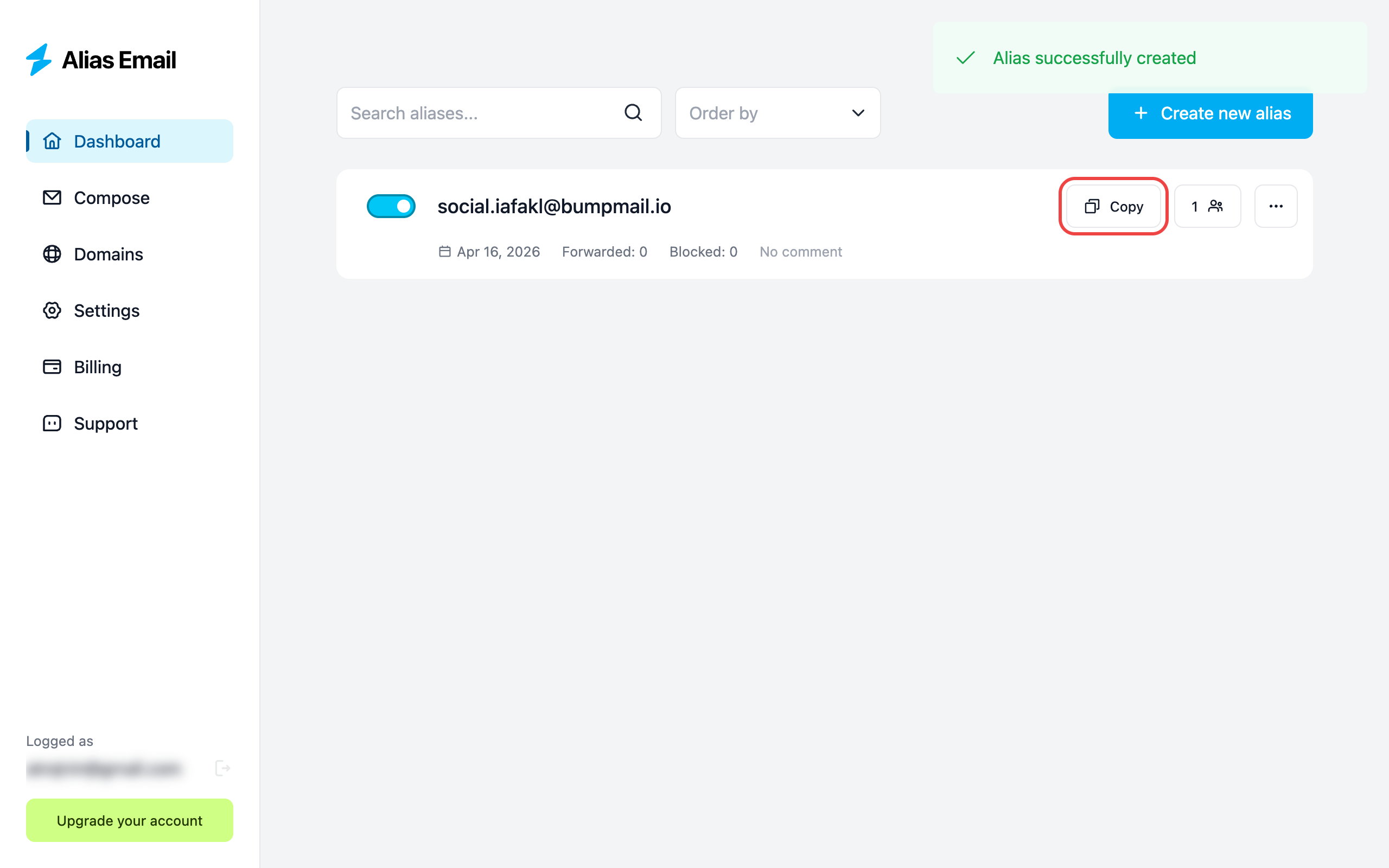
Step 5. Copy the alias
Your alias is live. Hit "Copy" to put the full address on your clipboard — you'll paste it instead of your Gmail in the next step.
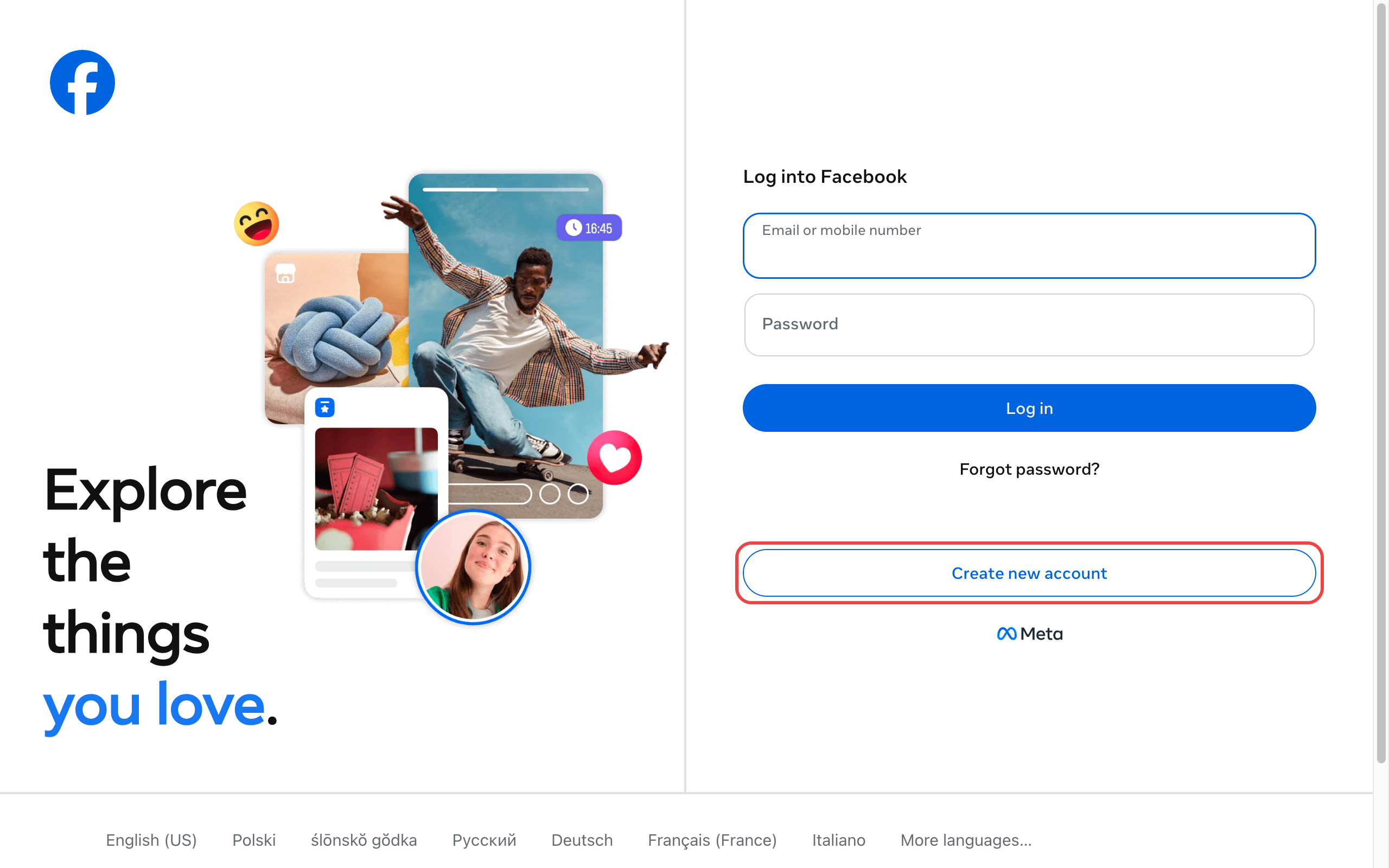
Step 6. Use it instead of your Gmail
Go to any service that asks for an email — say, Facebook. Click "Create new account" to open the signup form.
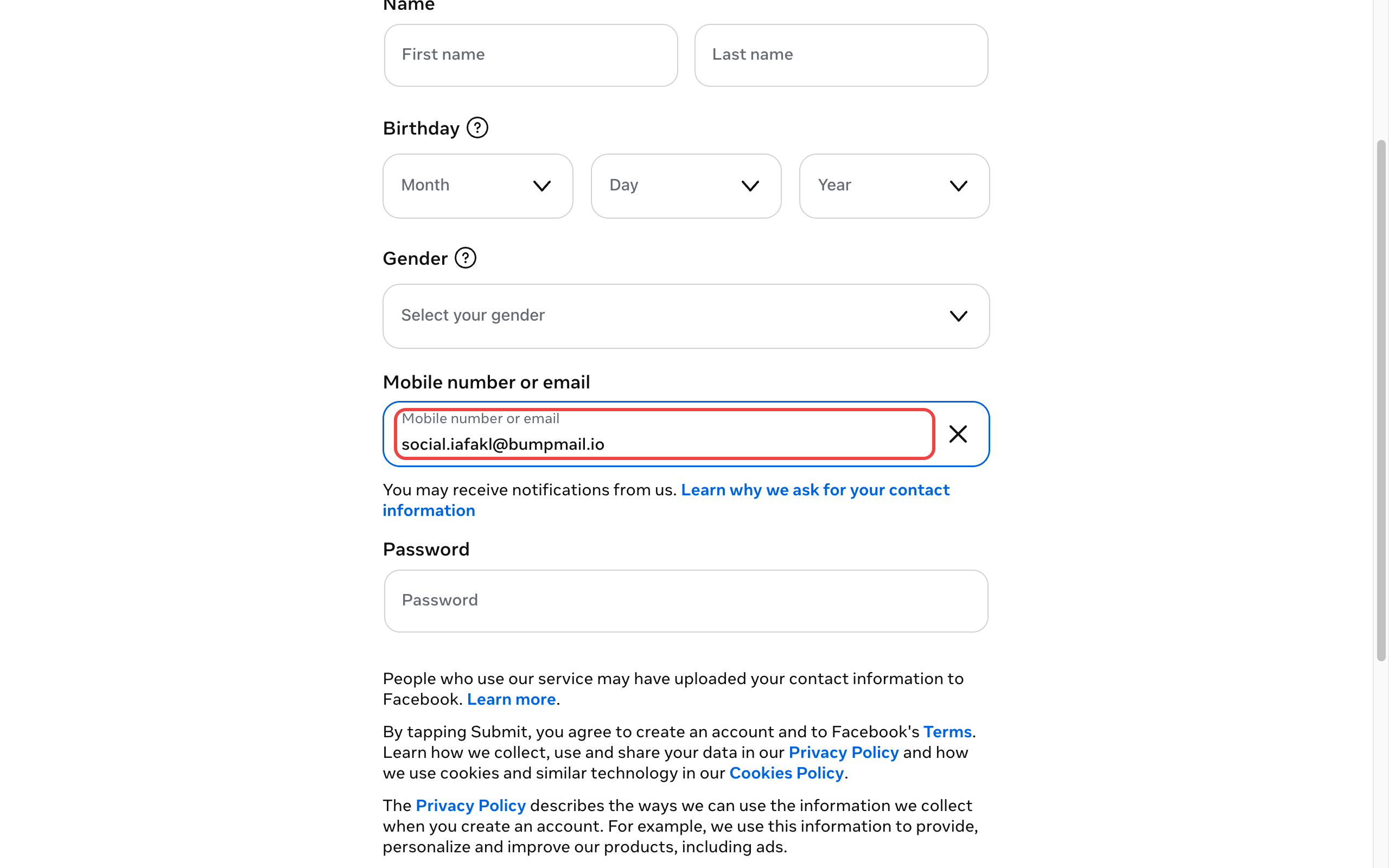
Paste the alias into the email field. Facebook (or any other service) sees only the alias — there's no path back to your real Gmail address.
Step 7. Mail forwards automatically
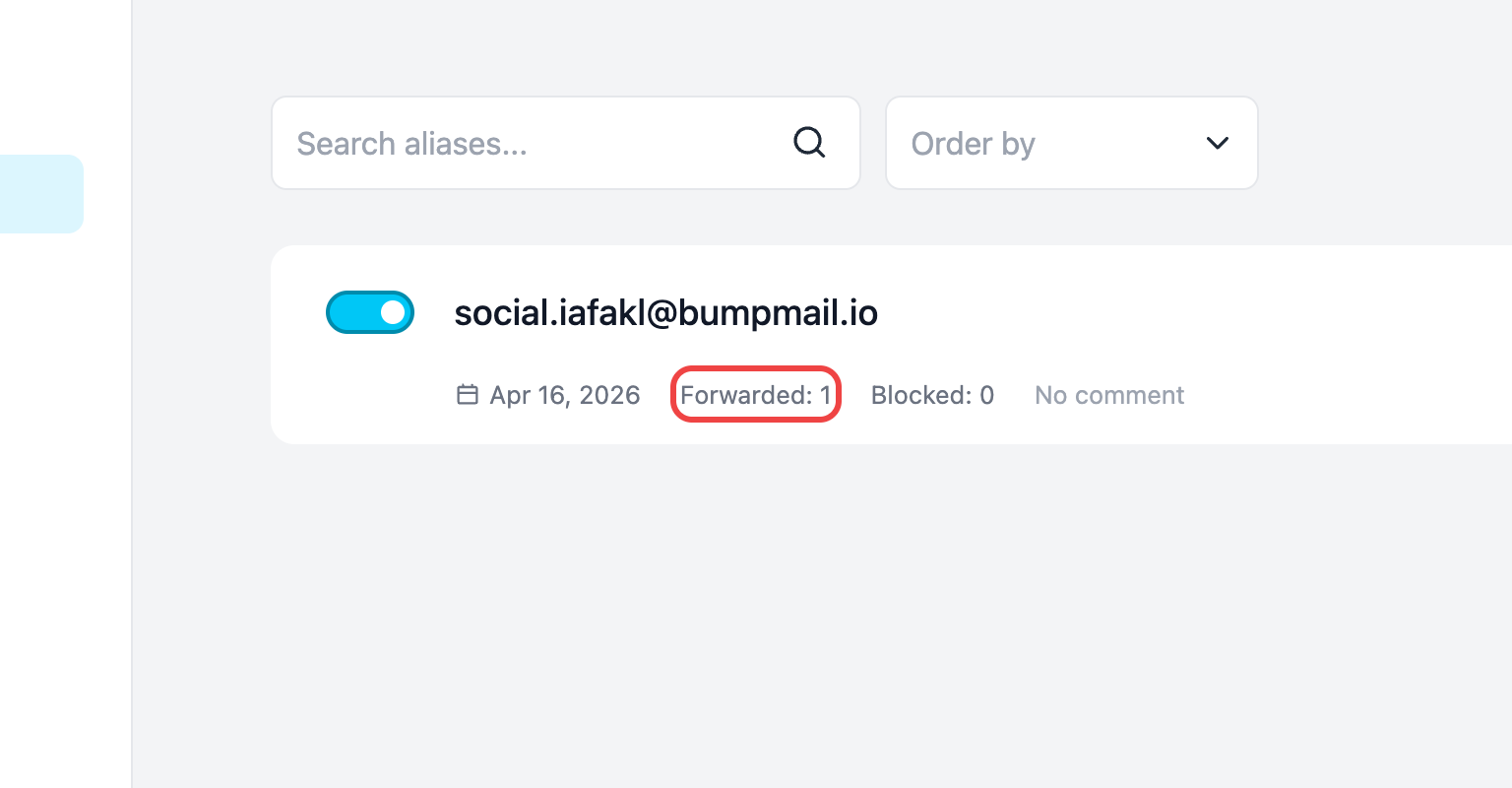
The moment Facebook sends a confirmation, Alias Email forwards it to your Gmail. The dashboard counter ticks up to "Forwarded: 1" so you always know which alias is active.
Step 8. Check Gmail — there it is
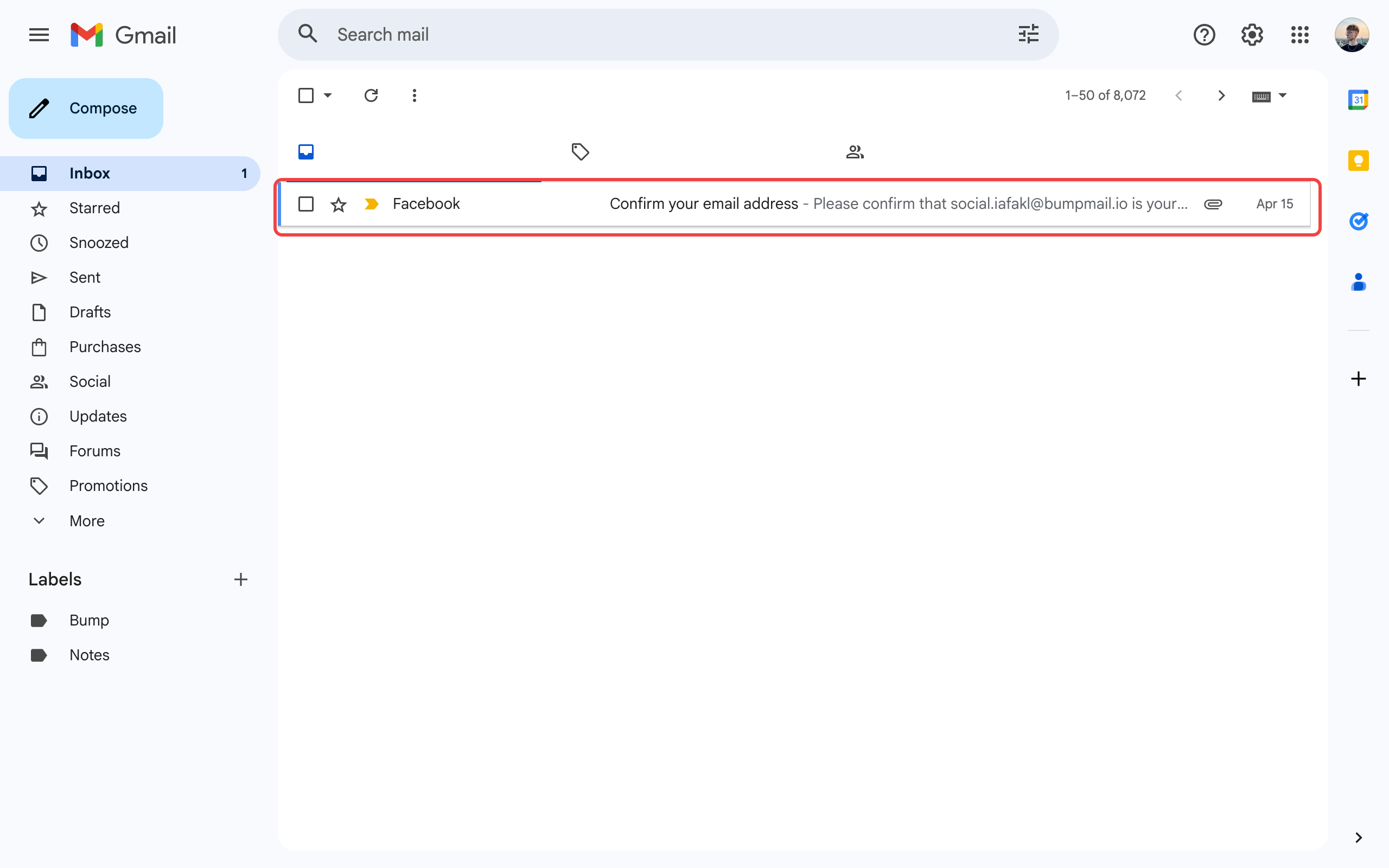
Now open your Gmail — the message is sitting in your inbox like any other. No filters, no folders, no extra clicks.
Step 9. Spam? Disable the alias
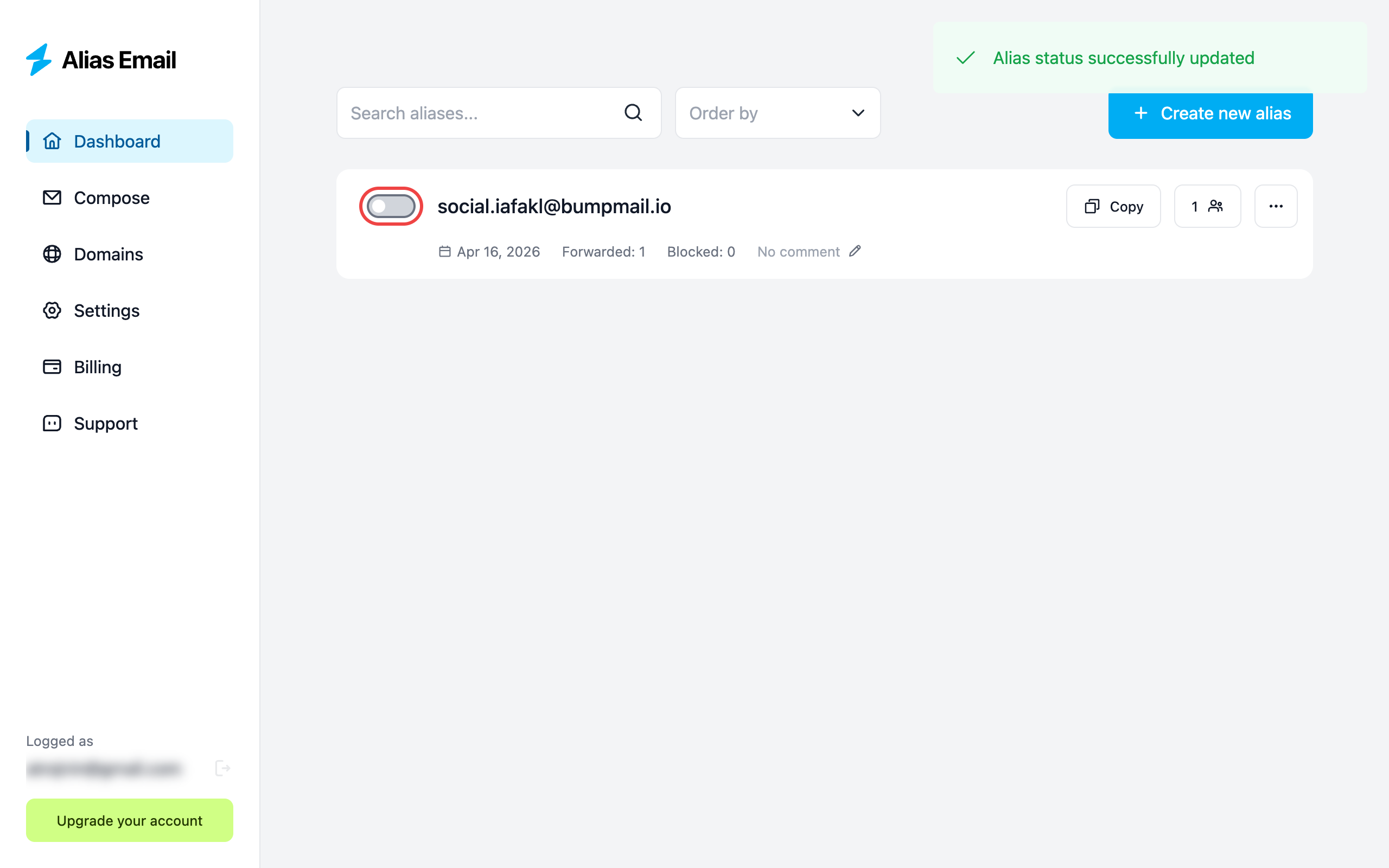
If an alias starts attracting unwanted mail, flip the toggle off. Future messages get rejected at the door — your Gmail stays clean. Re-enable later if you change your mind, or delete the alias entirely.
When a Gmail alias actually pays off
- Newsletter trials. Sign up to read one article — kill the alias when the daily digest gets old.
- Online shopping. One alias per store. If a retailer gets breached, only that alias leaks — disable it and the spam stops at the source.
- Free trials and "unlock the PDF" gates. Get the file, retire the alias.
- Marketplaces and forums. Talk to strangers without handing them your real Gmail.
- Job hunting and freelance. Use a custom-domain alias like
hello@yourname.cominstead ofpartyboy93@gmail.com.
Gmail "+" vs Alias Email
| Gmail "+" trick | Alias Email | |
|---|---|---|
| Hides your real address | No | Yes |
| Disable per alias | No — only Gmail filters | Yes — one toggle |
| Anonymous replies | No | Yes |
| Custom domain | No | Yes |
| Forward one alias to multiple inboxes | No | Yes |

Stop handing out your Gmail address
What's next?
- Step-by-step guide to creating an alias
- Add a custom domain for a professional look