
Email alias for Outlook
Outlook (and Outlook.com / Hotmail) lets you create aliases natively, but the feature is rigid: 10 aliases per Microsoft account, only 10 additions per year, and delete-only — there's no way to pause an alias when it starts attracting spam. Email aliases from a dedicated provider give you a one-click on/off toggle, no annual cap, and keep your real Outlook address fully hidden.How Outlook aliases work natively
In your Microsoft account settings you can add an alias — an additional address that shares the same inbox, contacts, and settings as your primary account. Outlook aliases can use @outlook.com, @hotmail.com, or a connected custom domain (Microsoft 365 only). You sign in with any of them and see the same mailbox.
Where Outlook aliases fall short
- 10 aliases, 10 additions per year. Microsoft enforces both limits. Once you hit the annual cap, you can't add a new alias even if you delete an old one.
- Delete-only — no on/off switch. If an alias starts getting spam, your only option is to delete it permanently. There's no way to pause it and bring it back later.
- Replies don't always come from the alias. Outlook on the web sends replies from the alias the message was received on, but Outlook desktop and Outlook for Mac often default to your primary address — exposing it to the recipient.
- Tied to the Microsoft ecosystem. Aliases live inside your Microsoft account — if you ever move to another provider, they don't follow.
- Custom domains require a Microsoft 365 Business plan. Free Outlook accounts can't add their own domain, and as of November 2023 even Microsoft 365 Personal / Family stopped supporting new custom domains.
What Alias Email adds for Outlook users
Alias Email is provider-agnostic. Each alias is a fully independent forwarding address that sits between the outside world and your Outlook inbox.
- No annual cap. Free up to 10 active aliases, and Premium lifts that to unlimited. There's no "10 per year" rule — delete an alias and you can immediately create another one.
- One-click on/off — no need to delete. Pause an alias when it gets noisy, re-enable it later. The address is still yours, the spam just stops.
- Anonymous replies. Reply from Outlook as usual; Alias Email sends the reply from your alias, so the recipient never sees your real address — regardless of which Outlook client you use.
- Bring any custom domain. No Microsoft 365 subscription required — connect
contact@yourname.comon a Free or Premium plan. - Nothing changes in Outlook. No rules, no MX changes, no extension. Forwarded mail just arrives.
Setting it up — start to finish
You keep using your existing Outlook account — no migration, no rules, no extension. Every message sent to your aliases will land in your normal Outlook inbox alongside regular mail. Sign-up to first forwarded message takes about a minute.
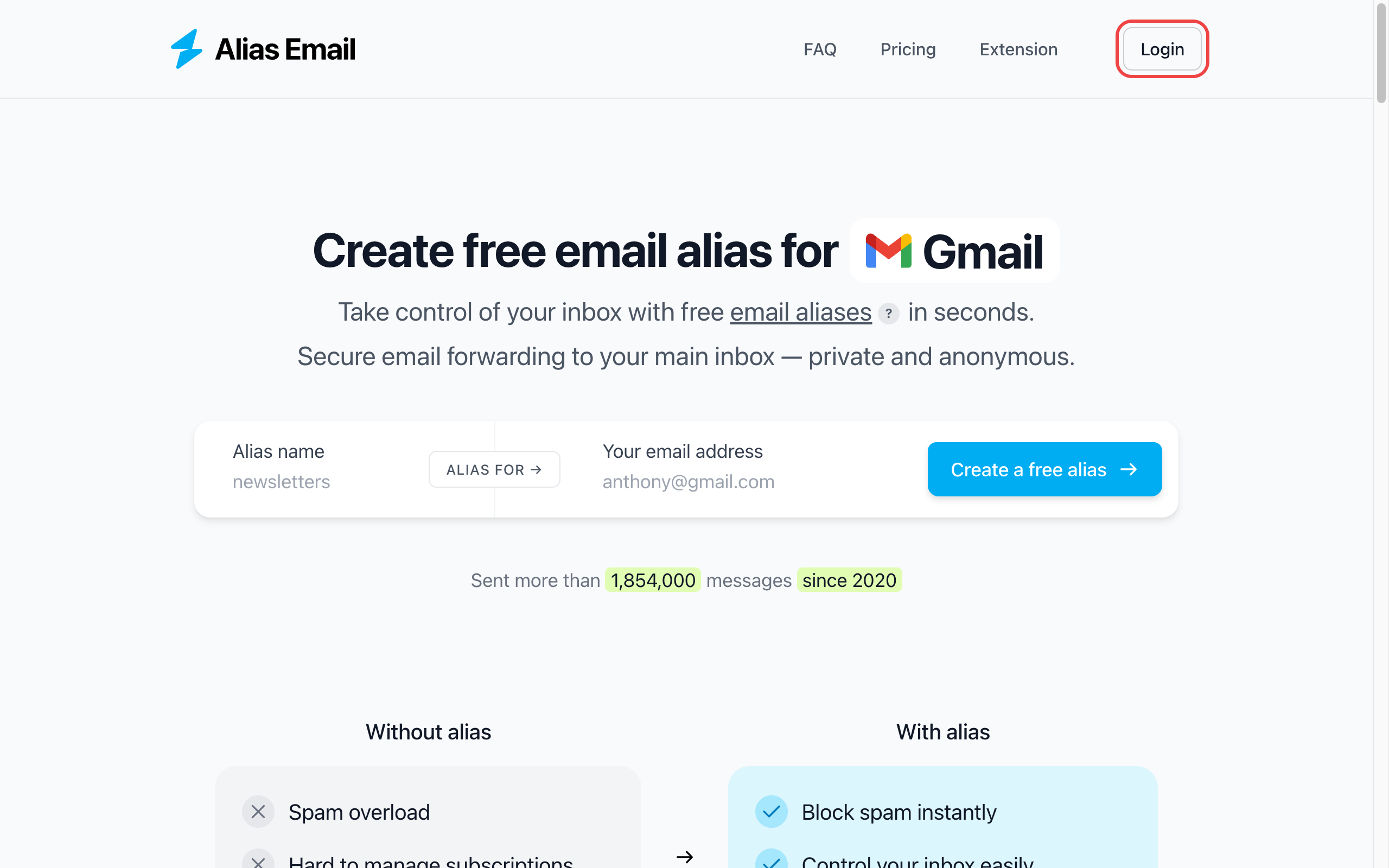
Step 1. Open Alias Email
Go to alias.email in a new tab and click "Login" in the top right corner.
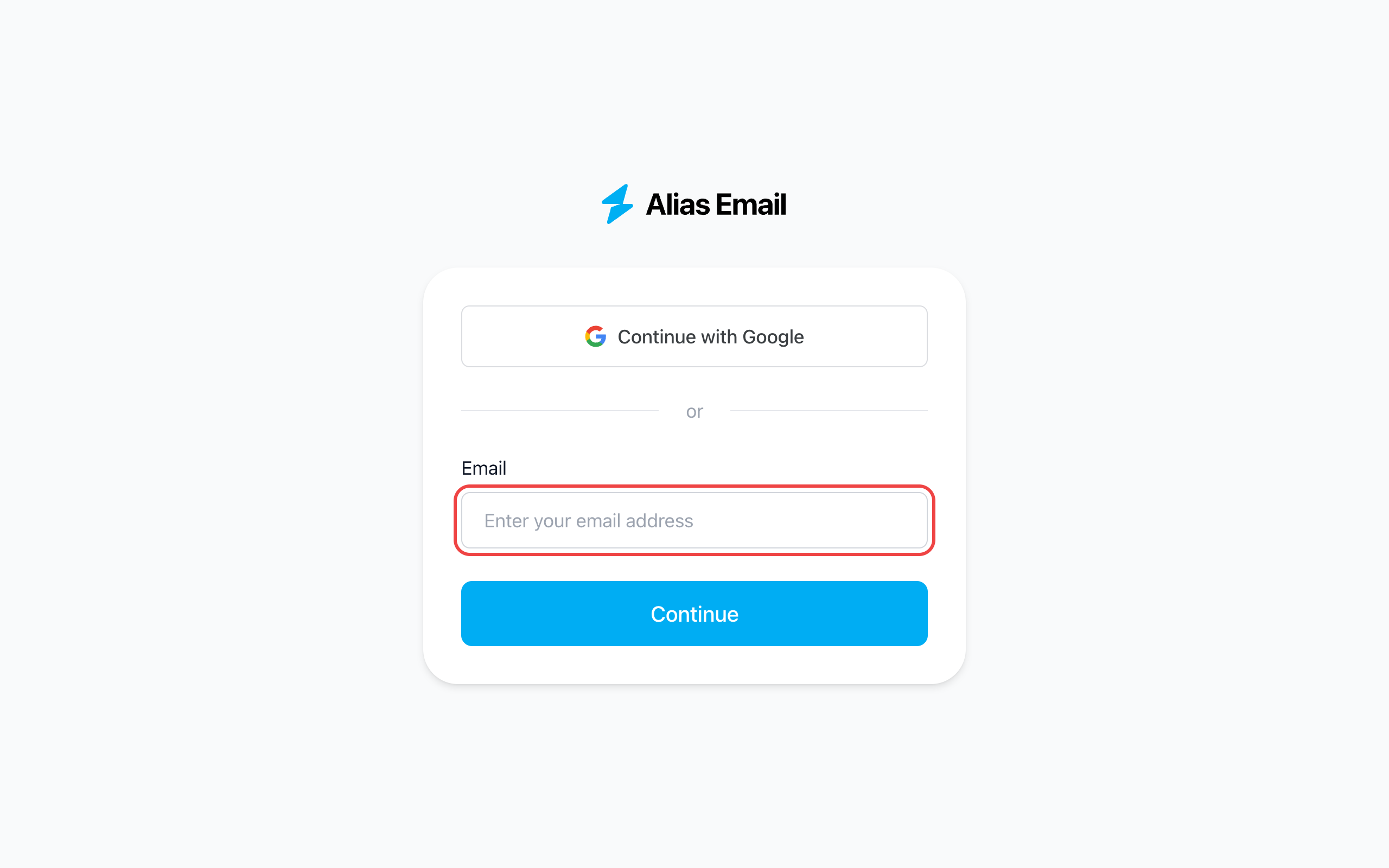
Step 2. Enter your Outlook address
Type your Outlook / Hotmail address into the email field and click "Continue". Alias Email uses passwordless login, so you'll get a magic link by email — no extra password to remember.
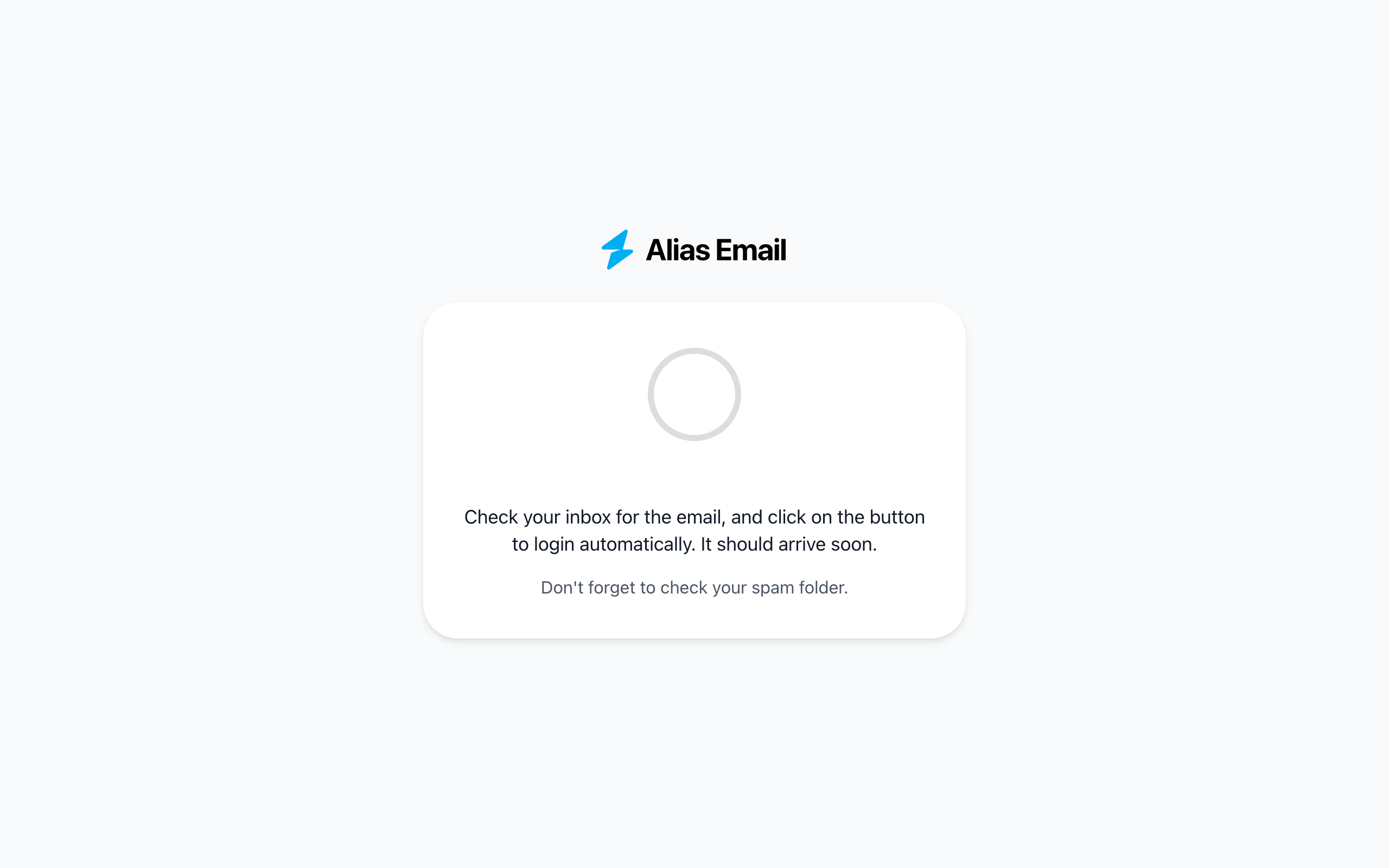
Step 3. Click the magic link in your inbox
You'll see a confirmation screen telling you the link is on its way. Open your Outlook inbox, find the email from Alias Email, and click the button inside — it signs you in automatically.
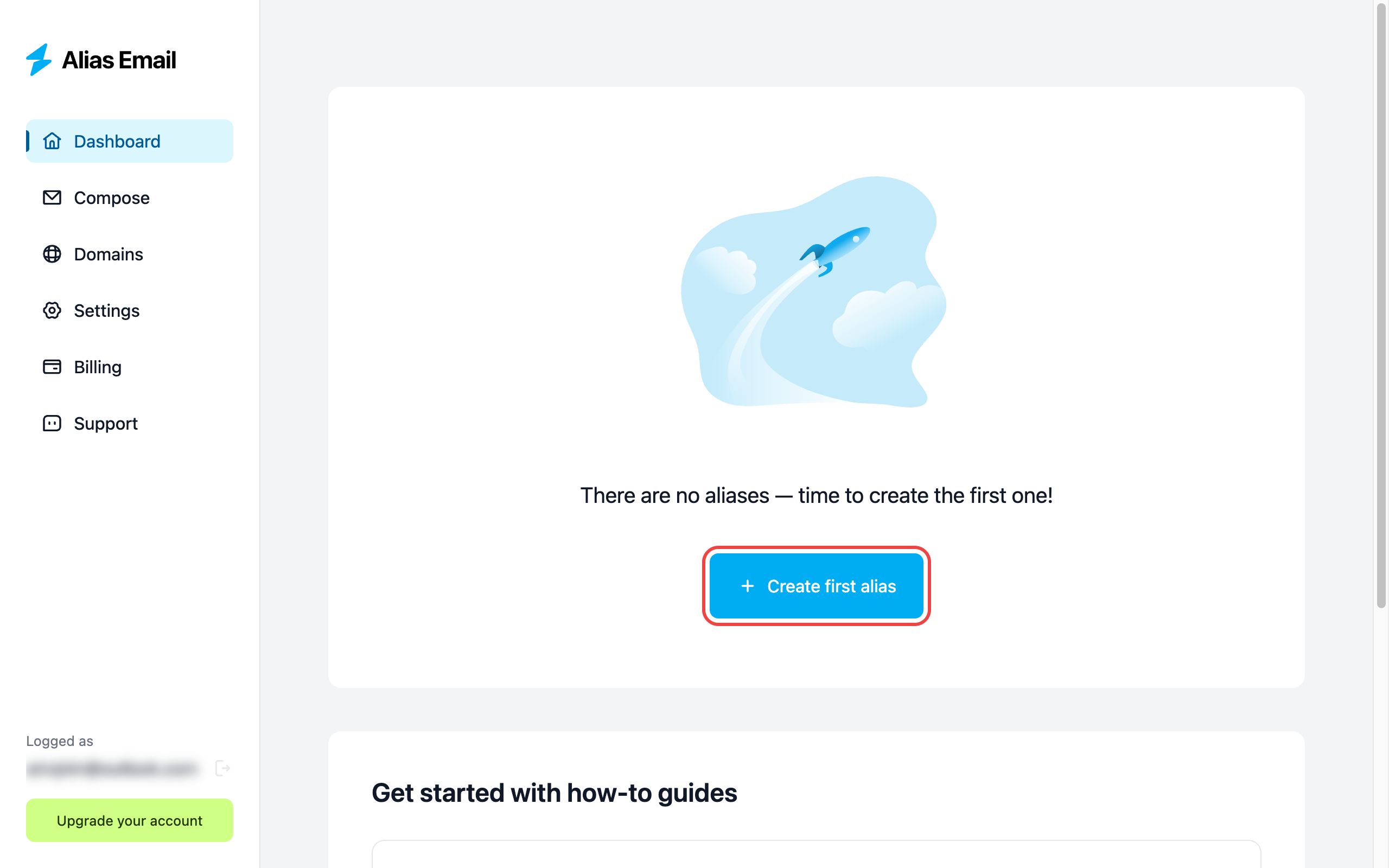
Step 4. Click "Create first alias"
You land on an empty dashboard. Hit the blue "Create first alias" button to open the alias creator.
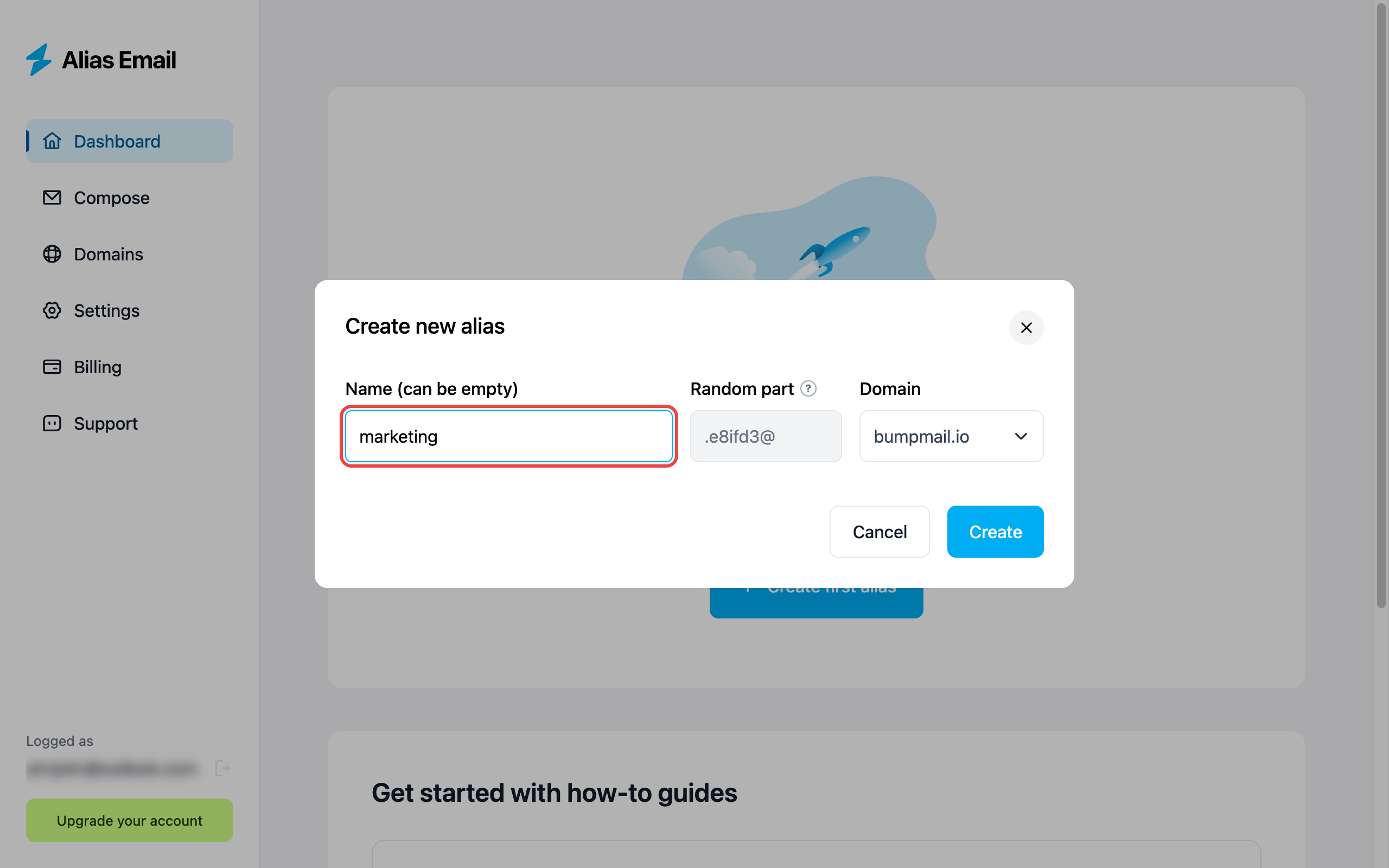
Step 5. Name your alias
Pick a label that describes what the alias is for — marketing, shopping, newsletters, anything memorable. The random part and domain are filled in automatically, so even if someone guesses your label, they can't guess the full address.
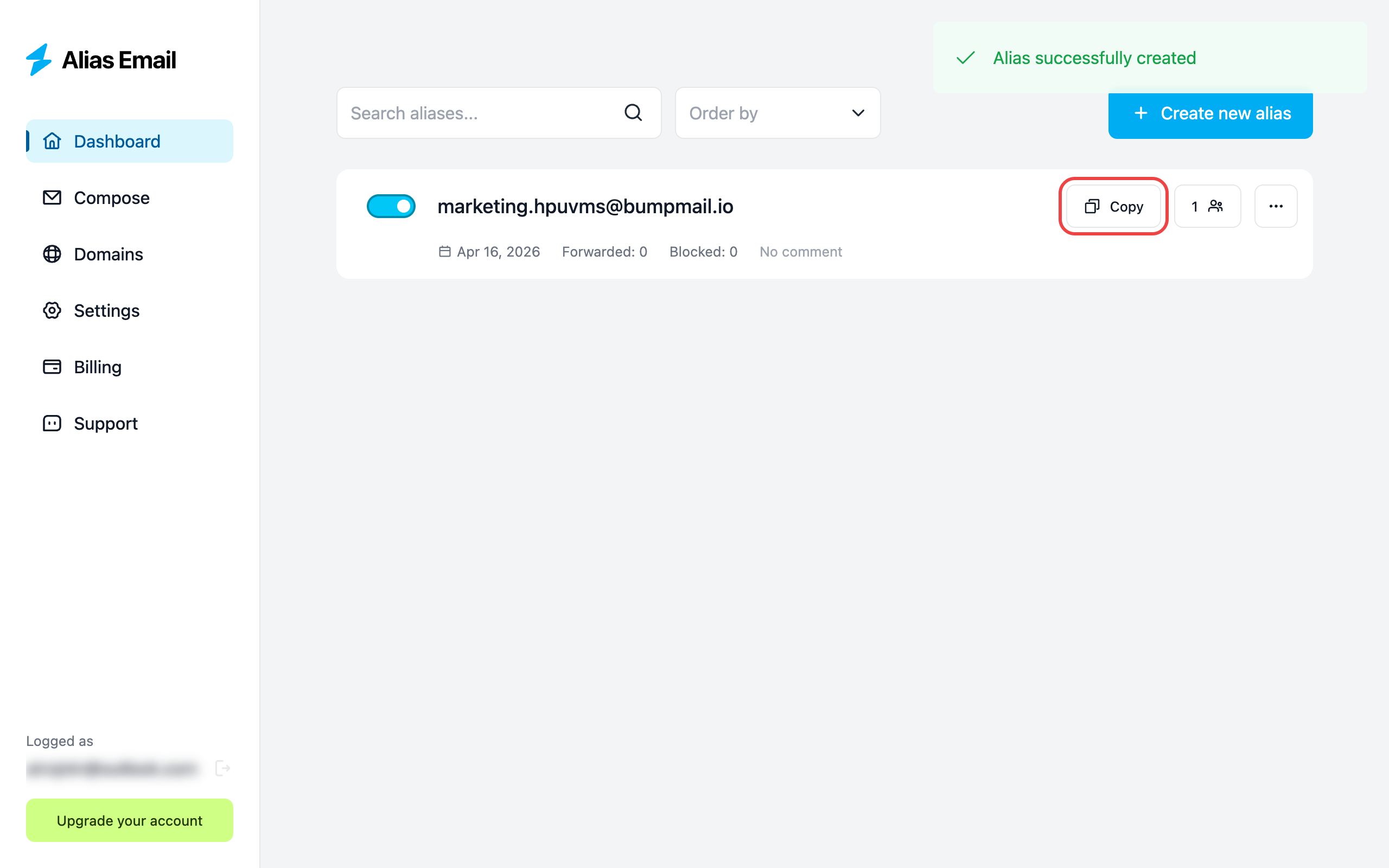
Step 6. Copy the alias
Your alias is live. Hit "Copy" to put the full address on your clipboard — you'll paste it instead of your Outlook address in the next step.
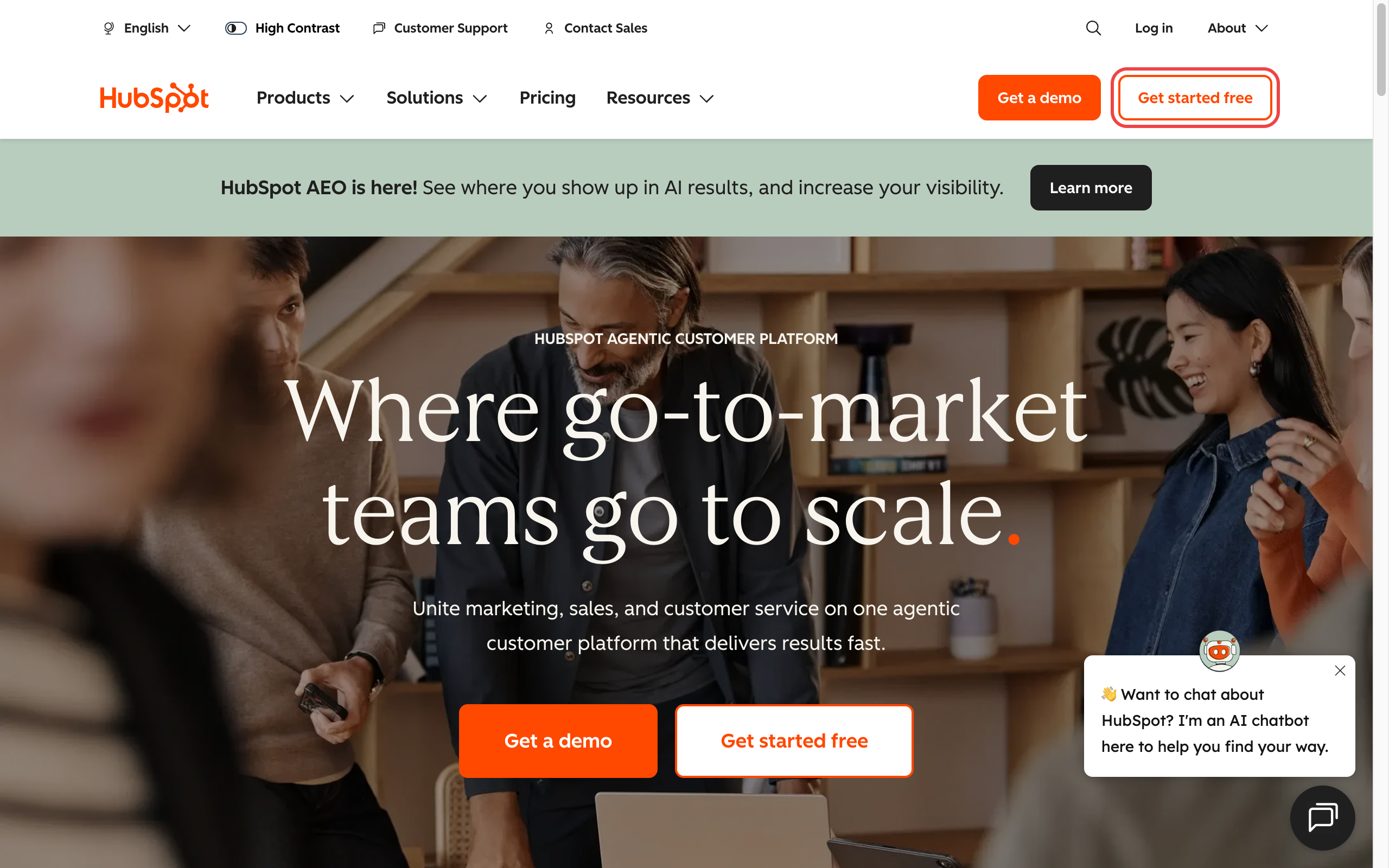
Step 7. Use it instead of your Outlook
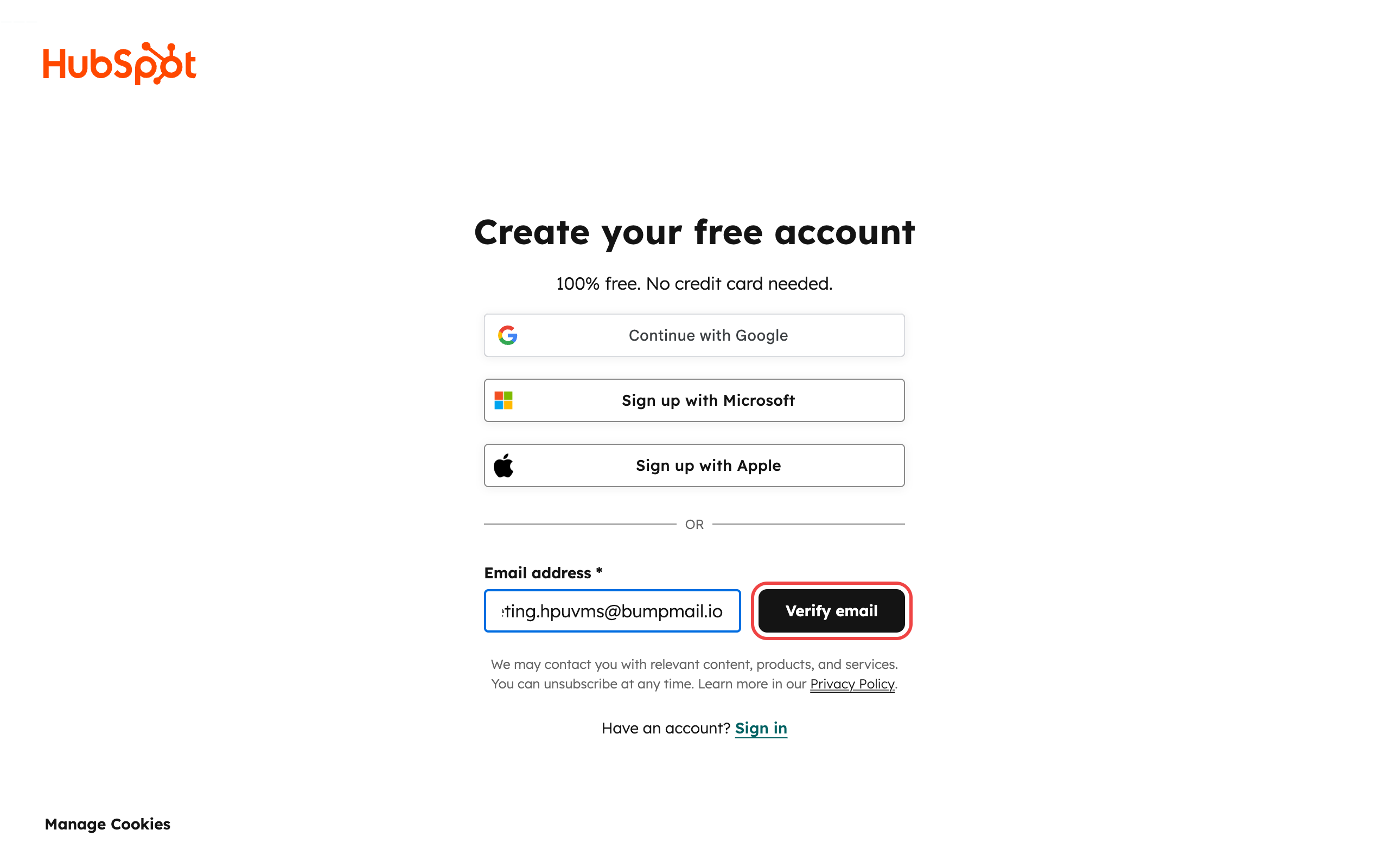
Go to any service you want to sign up for — we'll use HubSpot as an example. Click "Get started free" to begin registration.
Paste the alias into the email field. HubSpot (or any other service) sees only the alias — there's no path back to your real Outlook address.
Step 8. Mail forwards automatically
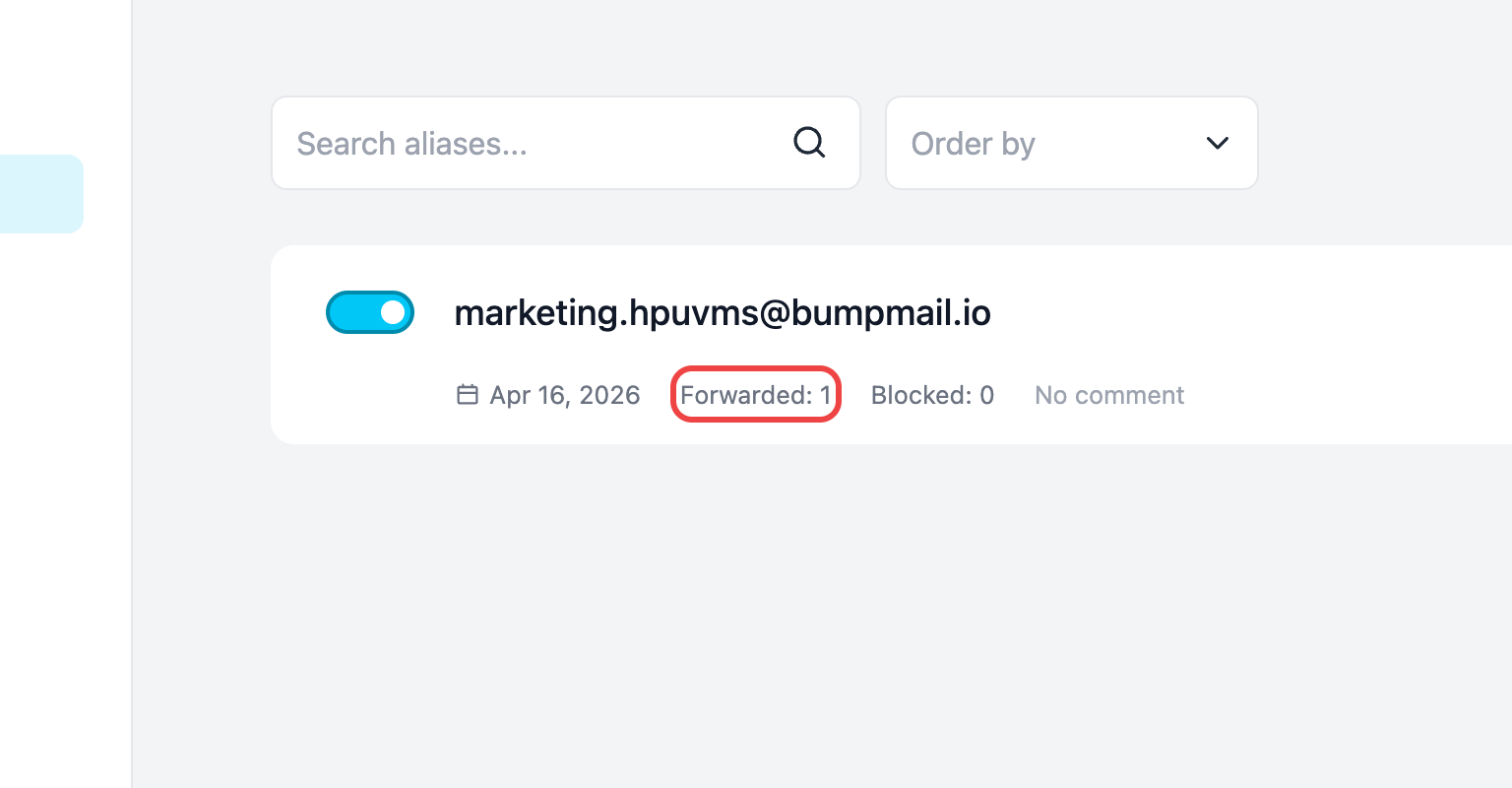
The moment HubSpot sends a confirmation, Alias Email forwards it to your Outlook inbox. The dashboard tracks every forwarded message so you always know which alias is getting traffic.
Step 9. Check Outlook — there it is
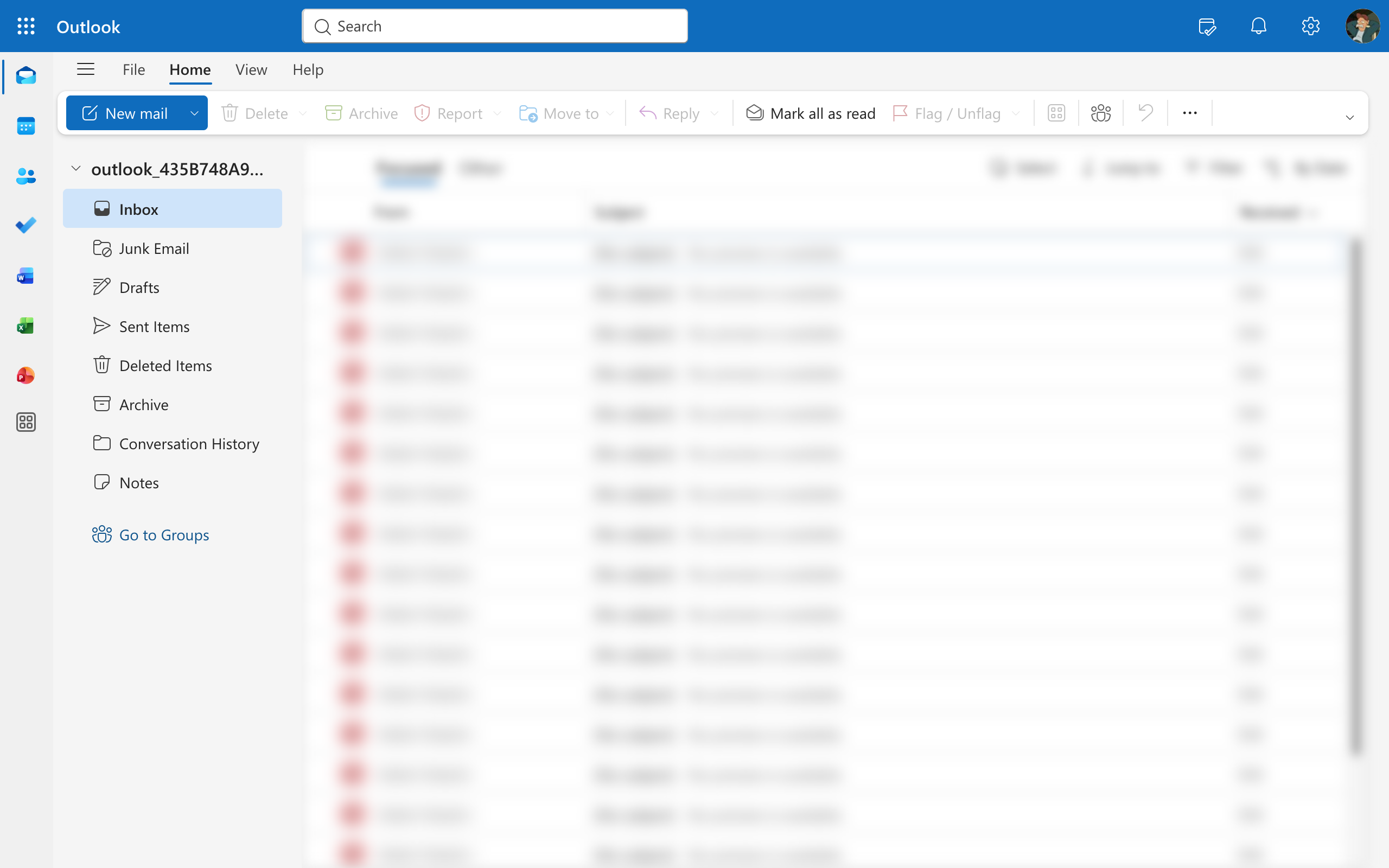
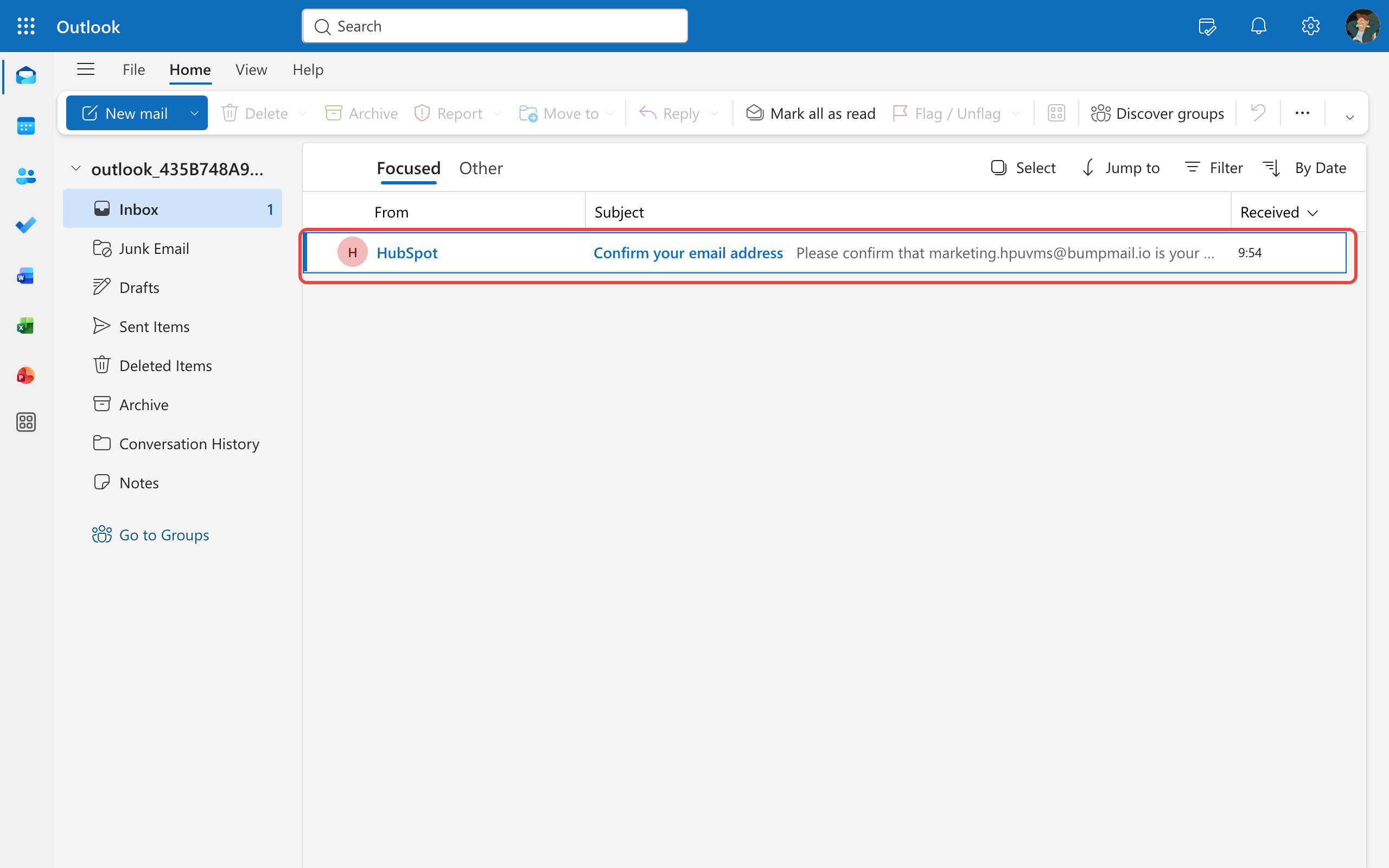
Open your Outlook inbox and you'll see the forwarded email from HubSpot, delivered like any regular message. No rules, no extra folders.
Step 10. Spam? Disable the alias
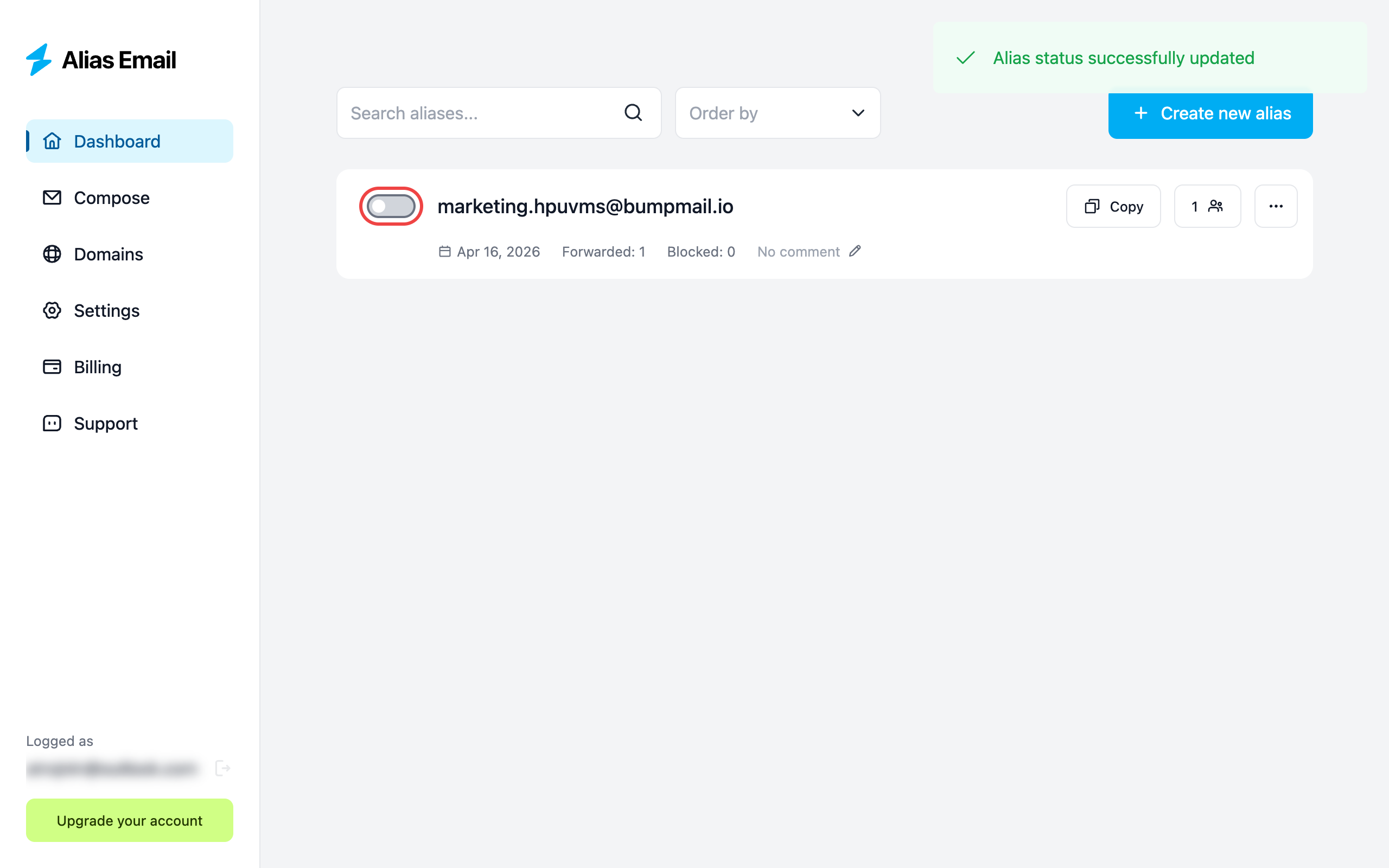
If an alias starts attracting unwanted mail, flip the toggle off — no need to delete it. Future messages are rejected at the door, your Outlook stays clean, and you can switch the alias back on whenever you want.
When an Outlook alias actually pays off
- Newsletter trials. Sign up to read one article — pause the alias when the daily digest gets old, instead of burning one of your 10 yearly slots.
- Online shopping. One alias per store. If a retailer gets breached, only that alias leaks — disable it and the spam stops at the source.
- Free trials. Get the file or the trial, retire the alias.
- Marketplaces and forums. Talk to strangers without handing them your real Outlook address.
- Job hunting and freelance. Use a custom-domain alias like
hello@yourname.comon a Free Alias Email plan — no Microsoft 365 subscription needed.
Outlook alias vs Alias Email
| Outlook alias | Alias Email | |
|---|---|---|
| Alias limit | 10 total, 10 added per year | 10 free / unlimited on Premium |
| Hides your real address | Partially | Yes |
| Disable / re-enable | No — delete only | Yes — one toggle |
| Anonymous replies | No | Yes |
| Custom domain | Microsoft 365 Business only | Any plan, any domain |
| Forward one alias to multiple inboxes | No | Yes |
| Provider lock-in | Microsoft only | Works with any email provider |

Stop burning Outlook's 10-per-year limit
What's next?
- Step-by-step guide to creating an alias
- What is an email alias and how it works