
How to import a PGP key?
Alias Email can encrypt every message forwarded to a recipient with that recipient's PGP public key. To set it up, paste the recipient's armored public key into Alias Email — we validate it before saving. If the key doesn't meet a few requirements it's rejected with an error. This guide covers those requirements and how to fix the most common problem: an expiration date.How PGP encryption protects your mail
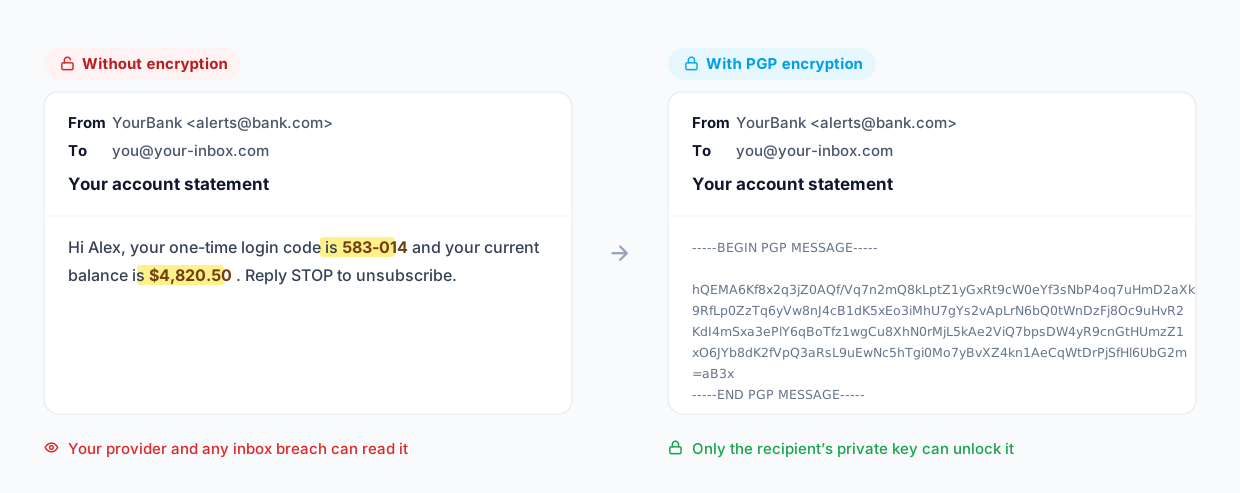
Without encryption, a forwarded message is readable by every server it passes through and sits in your inbox as plain text. With a recipient's PGP key, Alias Email scrambles the message so only that recipient's private key can unlock it:
Where to add the key in Alias Email
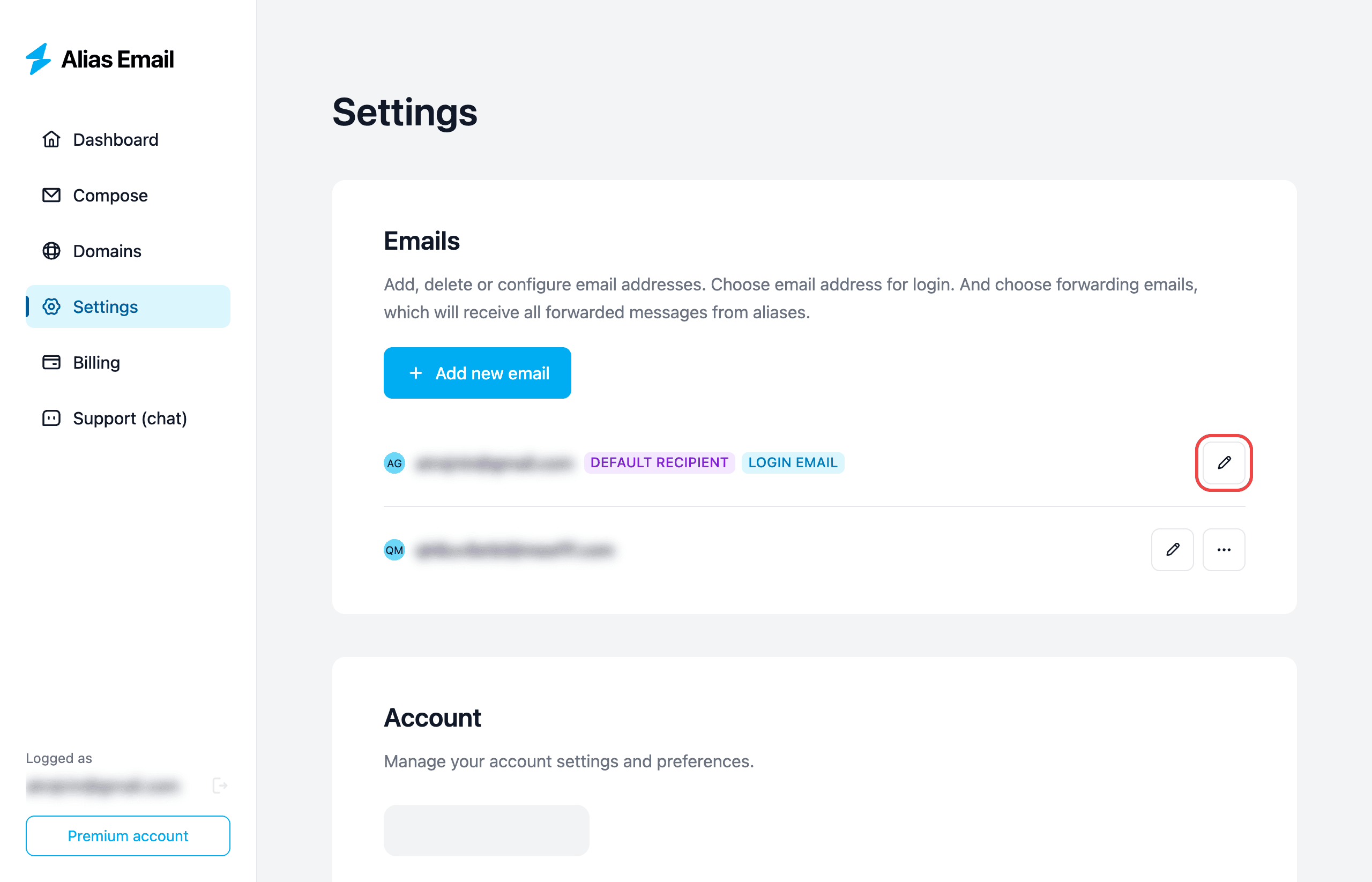
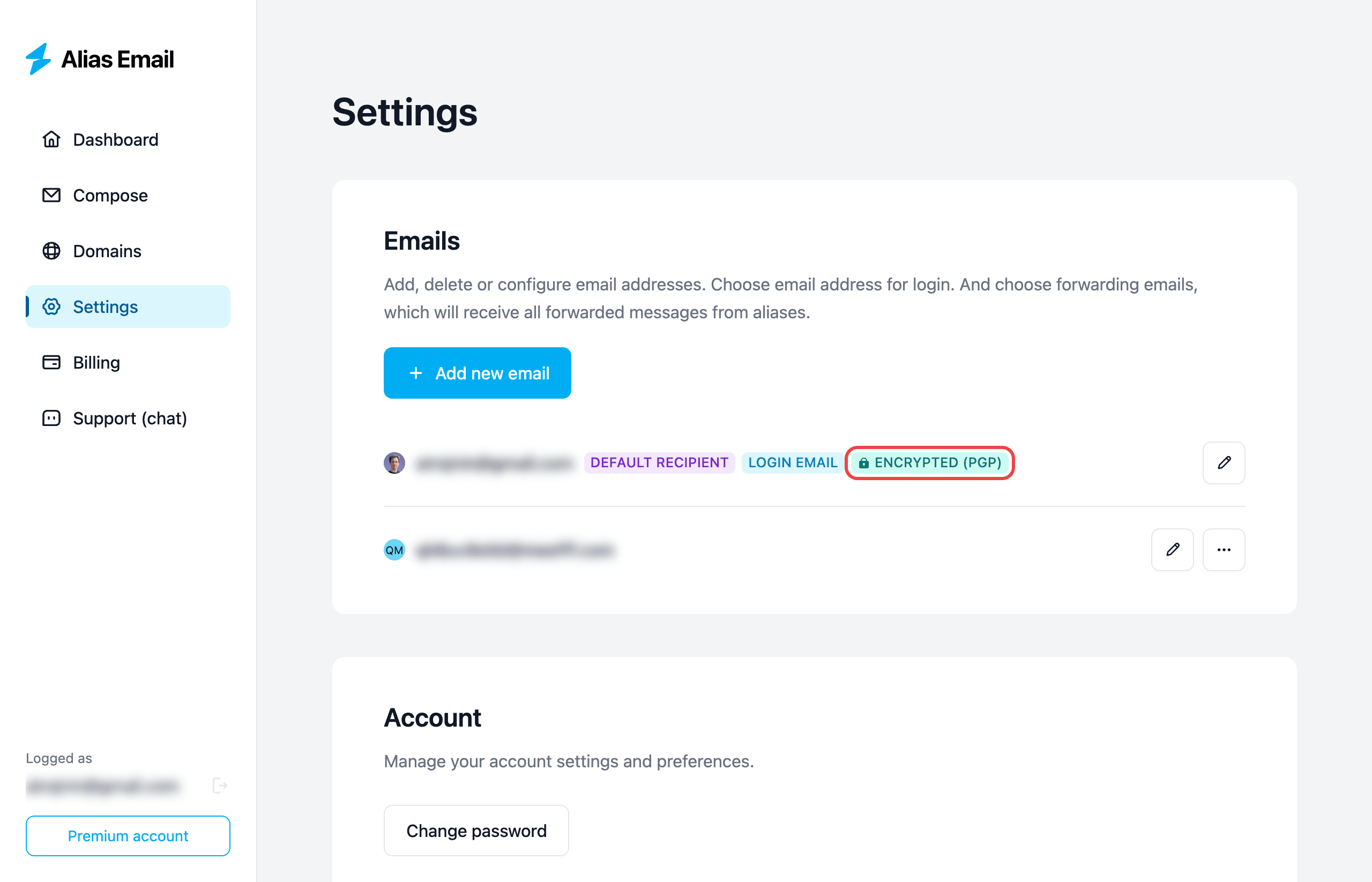
Open Settings → Emails, find the recipient you forward to, and click the edit (pencil) button.
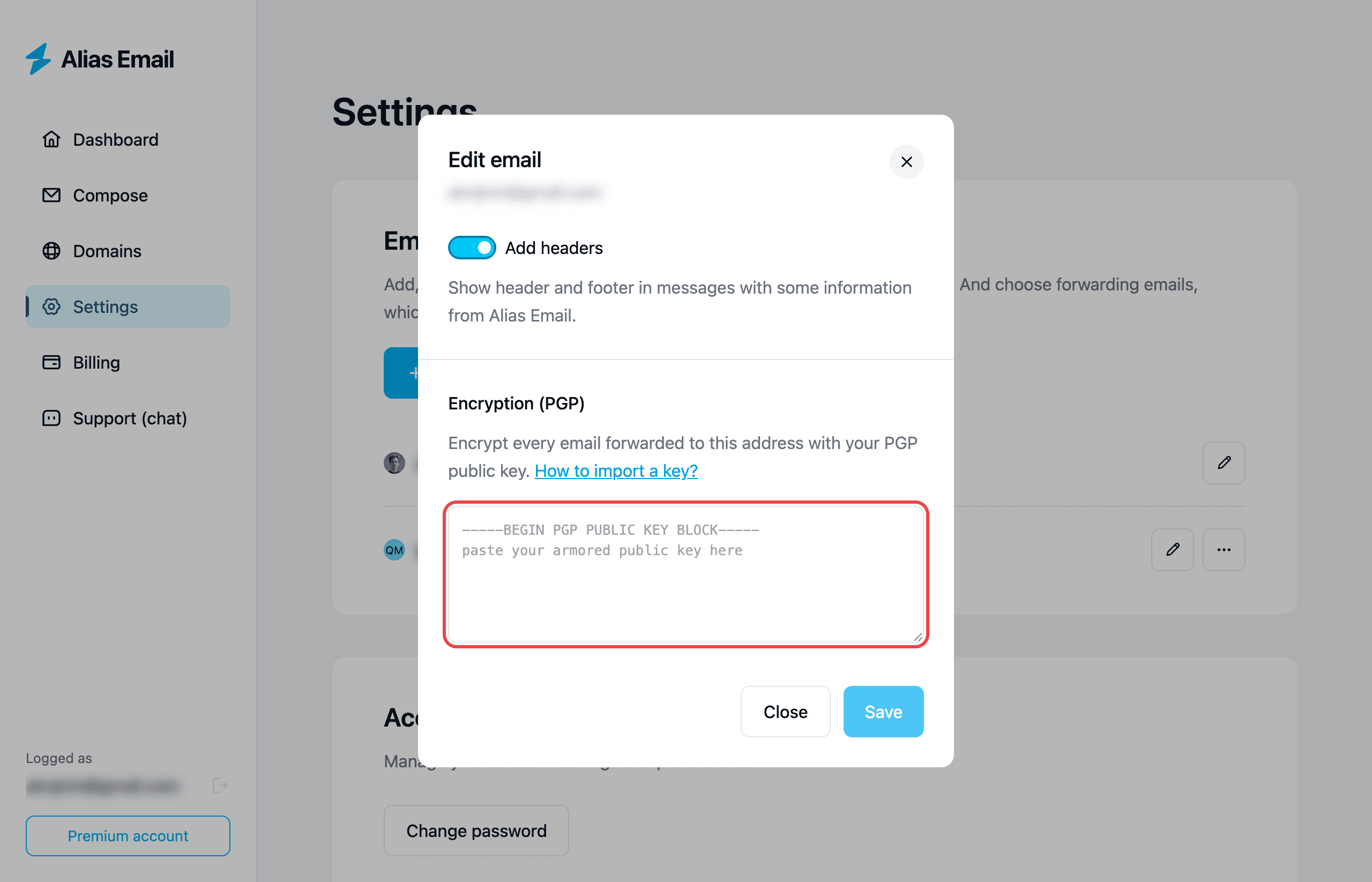
In the Encryption (PGP) section, paste the recipient's armored public key and press Save.
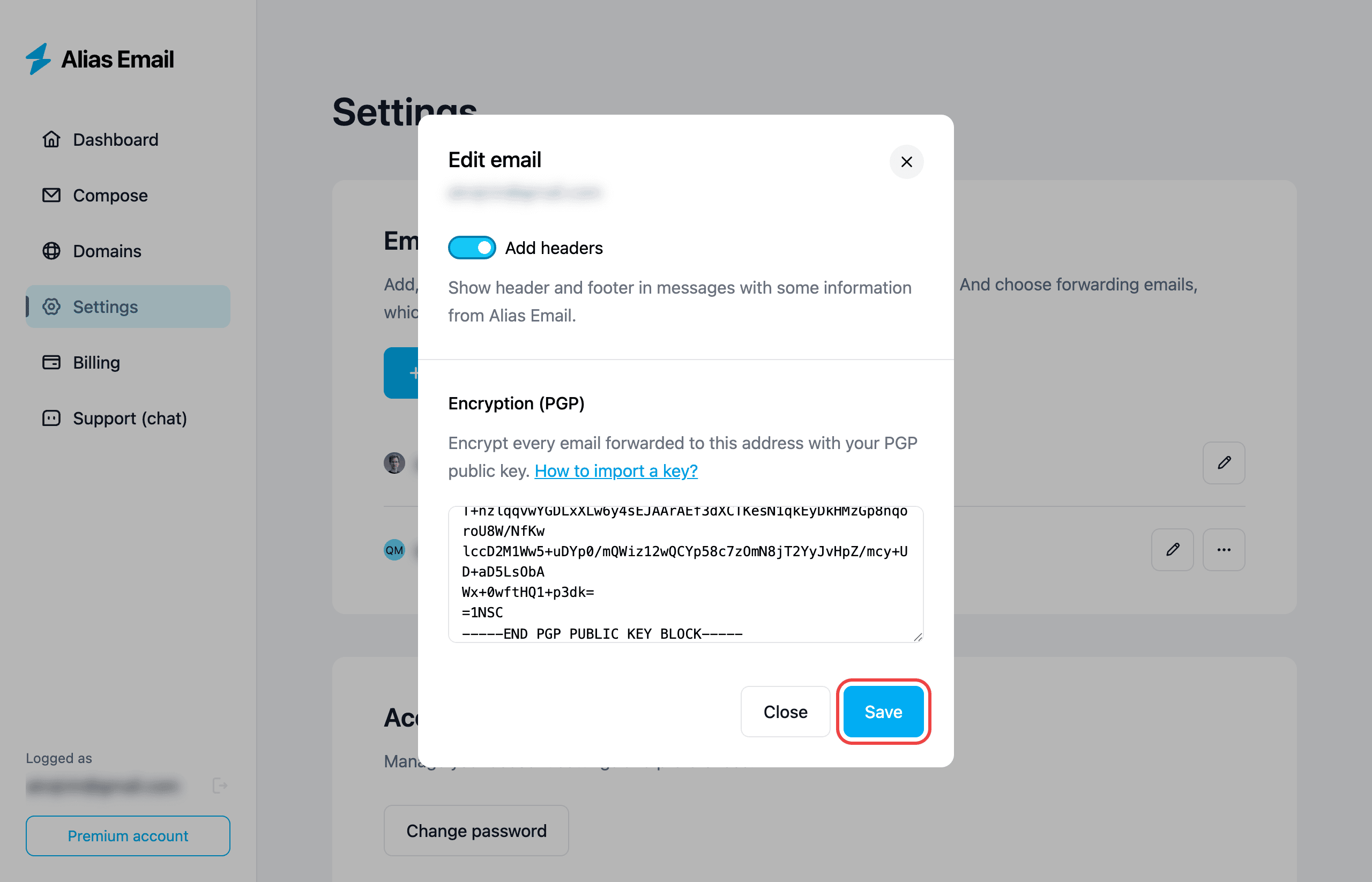
Once saved, that recipient shows an Encrypted (PGP) badge — from then on, every email forwarded to it is encrypted with the key.
What you can import
- It must be a public key — never a private (secret) key.
- It must have no expiration date.
- It must be able to encrypt messages (some keys are sign-only).
Your key has an expiration date
OpenPGP keys can carry an expiration date, after which other software stops trusting them. We reject any key that has one — even if it hasn't expired yet — because an expiring key would silently stop working for the recipient the moment it lapses, and forwarded mail would fail. We'd rather tell you up front than have encryption break later.
To import the key, remove its expiration date and export it again. Changing a key's expiration requires the secret key, so this has to be done by the person who owns it. If the key is yours, follow the steps below with GnuPG. If it belongs to someone else, ask them to do it and send you the updated public key.
Step 1 — Find the key's expiration
List your keys and look for an [expires: …] note:
gpg --list-keys <user id><user id> can be the key owner's email address or the key's fingerprint.
Step 2 — Open the key for editing
gpg --edit-key <user id>This drops you into an interactive gpg> prompt.
Step 3 — Remove the expiration
First clear the expiration on the primary key. At the gpg> prompt type:
expireWhen asked how long the key should remain valid, enter 0 (key does not expire) and confirm.
Then do the same for every subkey. Select each subkey by its index and clear its expiration:
key 1
expire
0
Repeat key 2, key 3, … for any additional subkeys (running key 1 again deselects it).
Step 4 — Save
saveStep 5 — Confirm there's no expiration left
gpg --list-keys <user id>The [expires: …] note should be gone.
Step 6 — Export the public key
Export the public key (not the secret key) as armored text:
gpg --armor --export <user id> > public-key.ascOpen public-key.asc, copy everything from -----BEGIN PGP PUBLIC KEY BLOCK----- to -----END PGP PUBLIC KEY BLOCK-----, and paste it into Alias Email.
Other reasons a key may be rejected
It's a private key
If you paste a block that begins with -----BEGIN PGP PRIVATE KEY BLOCK-----, it's rejected. Alias Email only needs the public key, and you should never share your private key with anyone. Export the public part instead:
gpg --armor --export <user id>The key can't encrypt
Some keys are created for signing only and have no encryption capability, so they can't be used to encrypt forwarded mail. Use a key that has an encryption (sub)key, or generate one that does.
The key couldn't be read
If the text is incomplete or altered, we can't parse it. Make sure you copied the entire armored block, including the -----BEGIN…----- and -----END…----- lines, with no characters added or removed.
What's next?
- New to forwarding? Learn how to add more recipients to an alias.
- Take your privacy further by adding a custom domain.