

How to generate aliases with Bitwarden?
Bitwarden can create a new email alias for every site you sign up to, right from its password generator. Alias Email works with it: create an API key, paste it into Bitwarden, and each generated alias appears in your Alias Email account, ready to forward to your inbox.Step 1. Create an API key
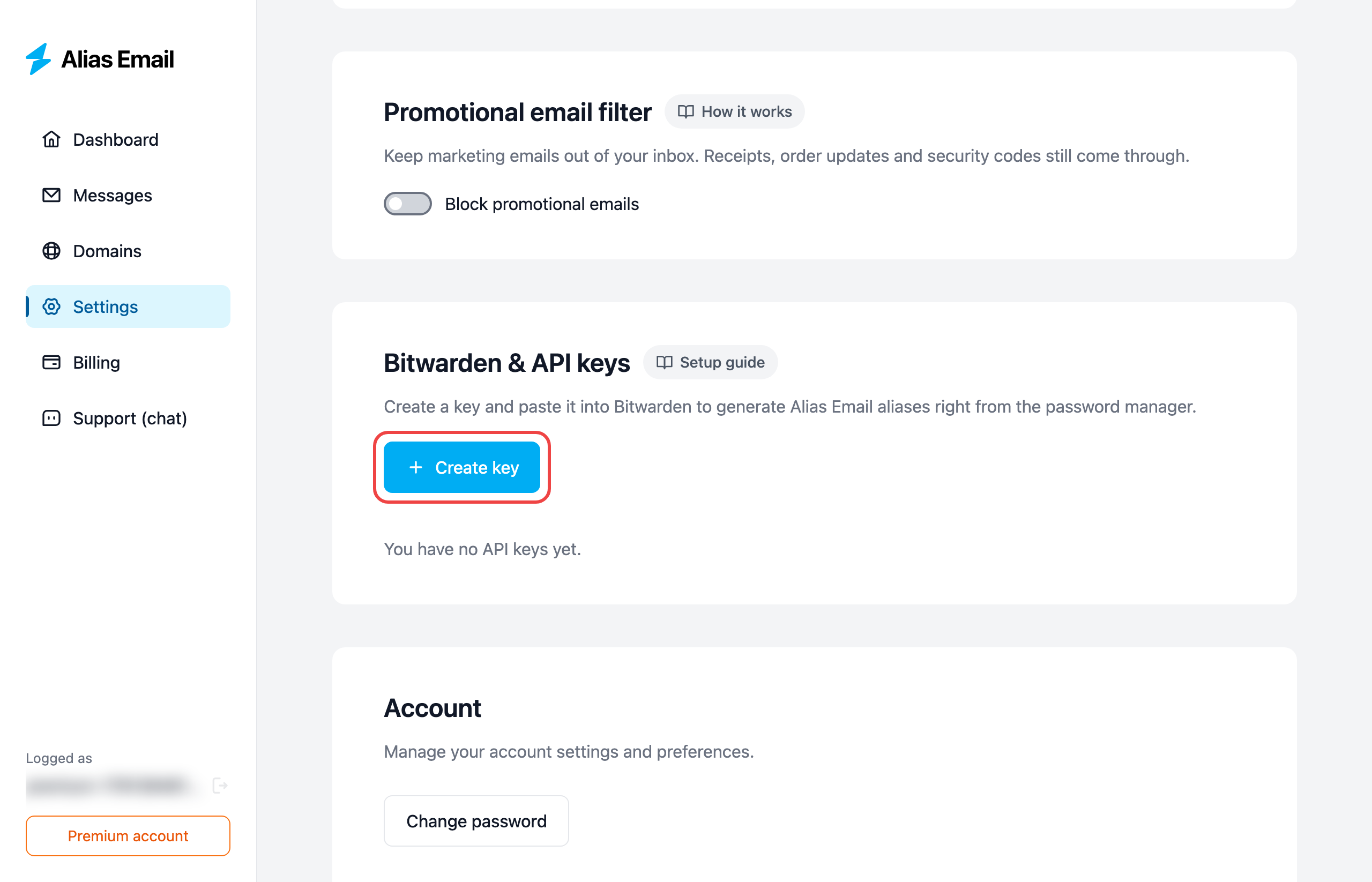
Open Settings, find the Bitwarden & API keys section and click Create key. The name is just for you, for example Bitwarden.
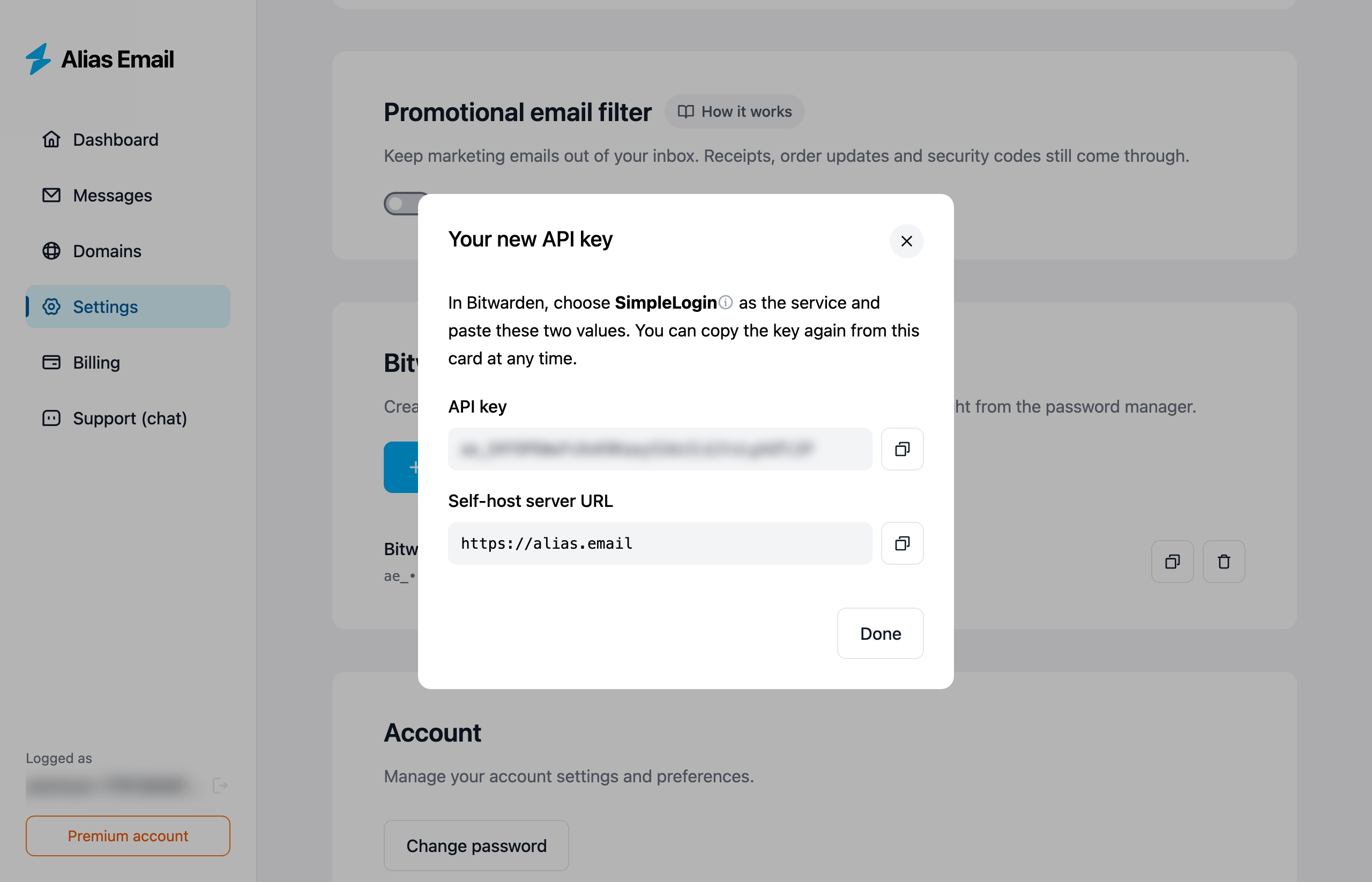
Alias Email shows the key and the server URL. Each has a copy button next to it, you'll paste both into Bitwarden in the next step.
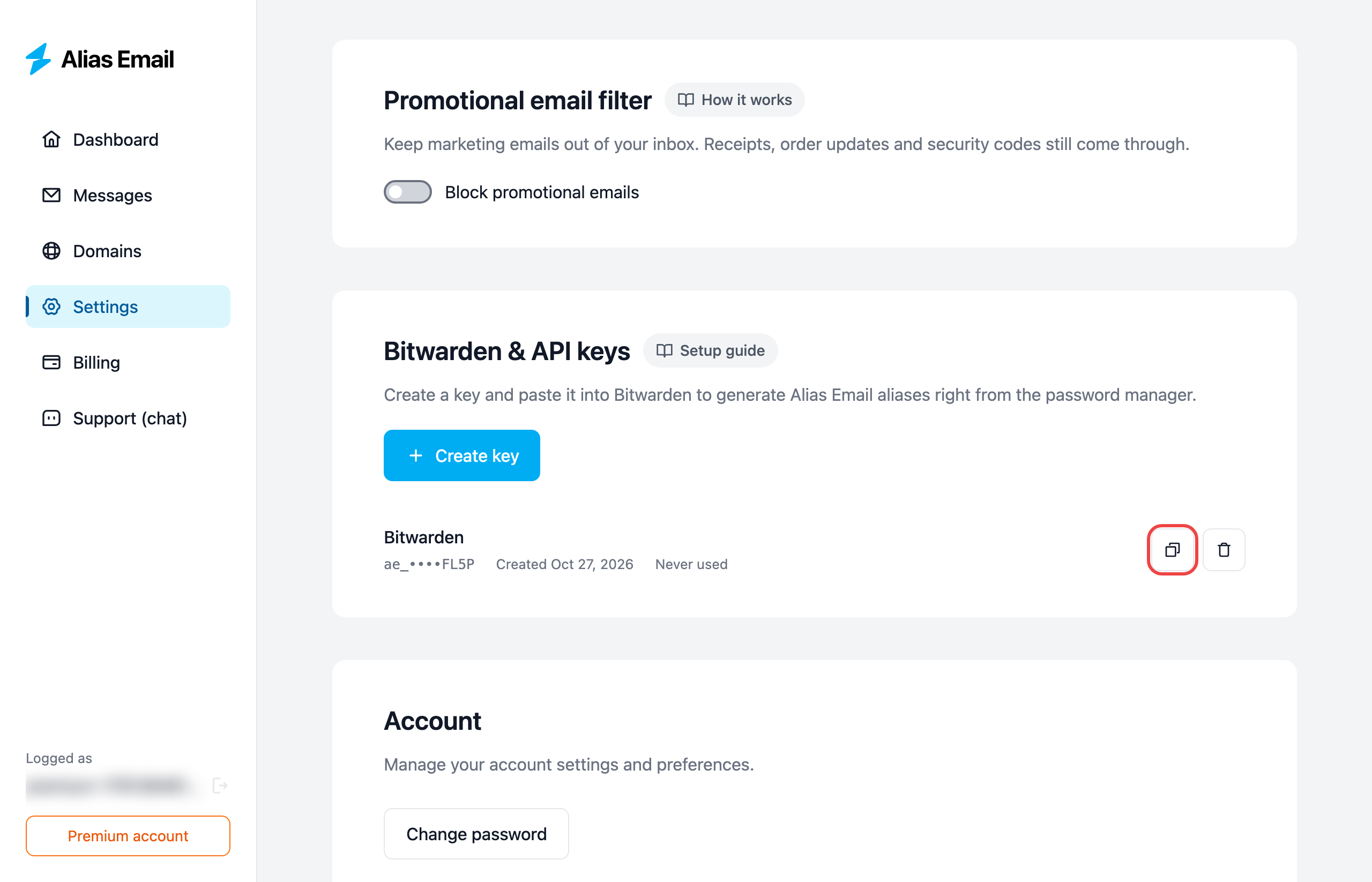
Closed the window too early? The key stays in the list, copy it again with the button next to it whenever you need.
Step 2. Set up Bitwarden
You do this once. It works in the Bitwarden browser extension, desktop app, iOS and Android; the screenshots are from the browser extension.
1. Open the Username generator
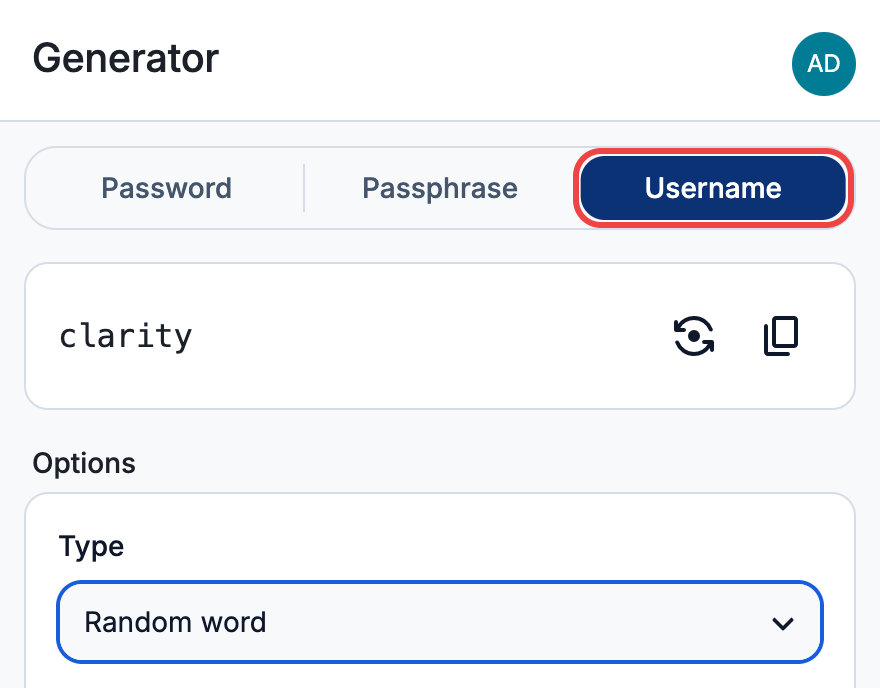
Open Generator and switch to Username. Bitwarden calls everything you type into a site's login field a username, so this is where it makes email addresses too.
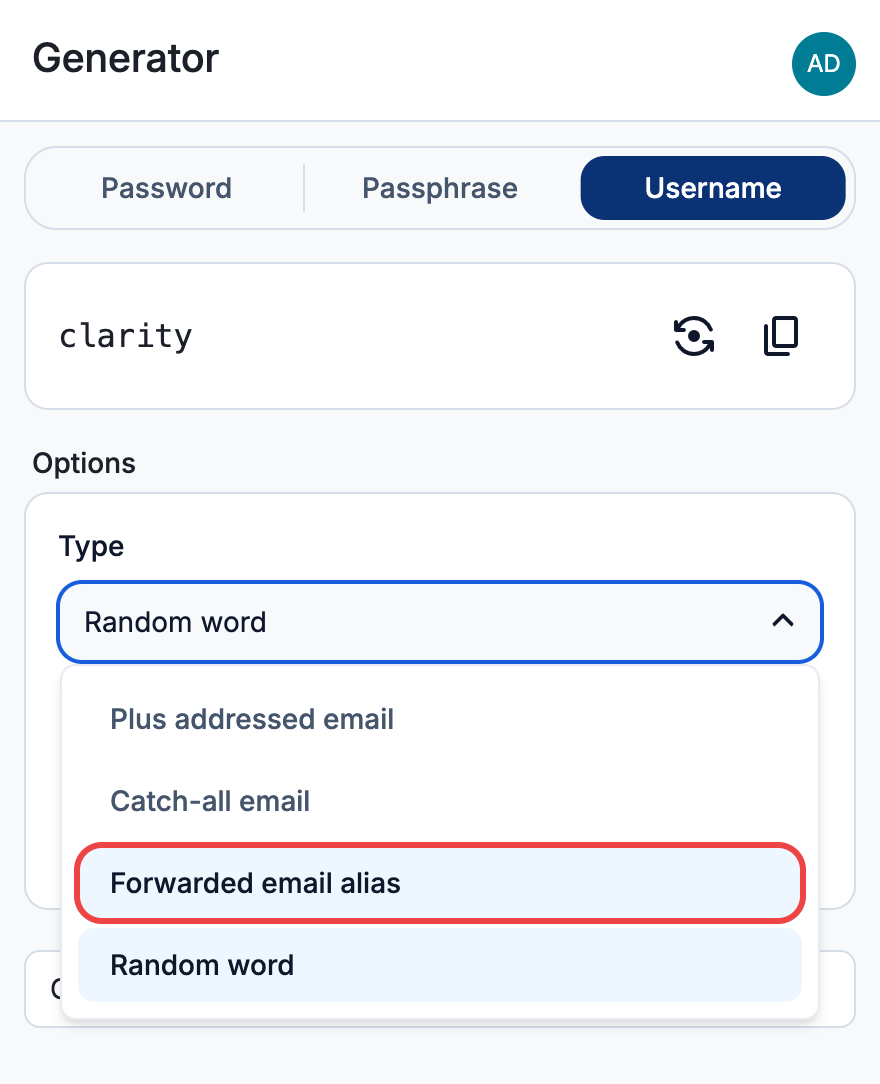
2. Choose Forwarded email alias
In Type, pick Forwarded email alias.
3. Choose SimpleLogin
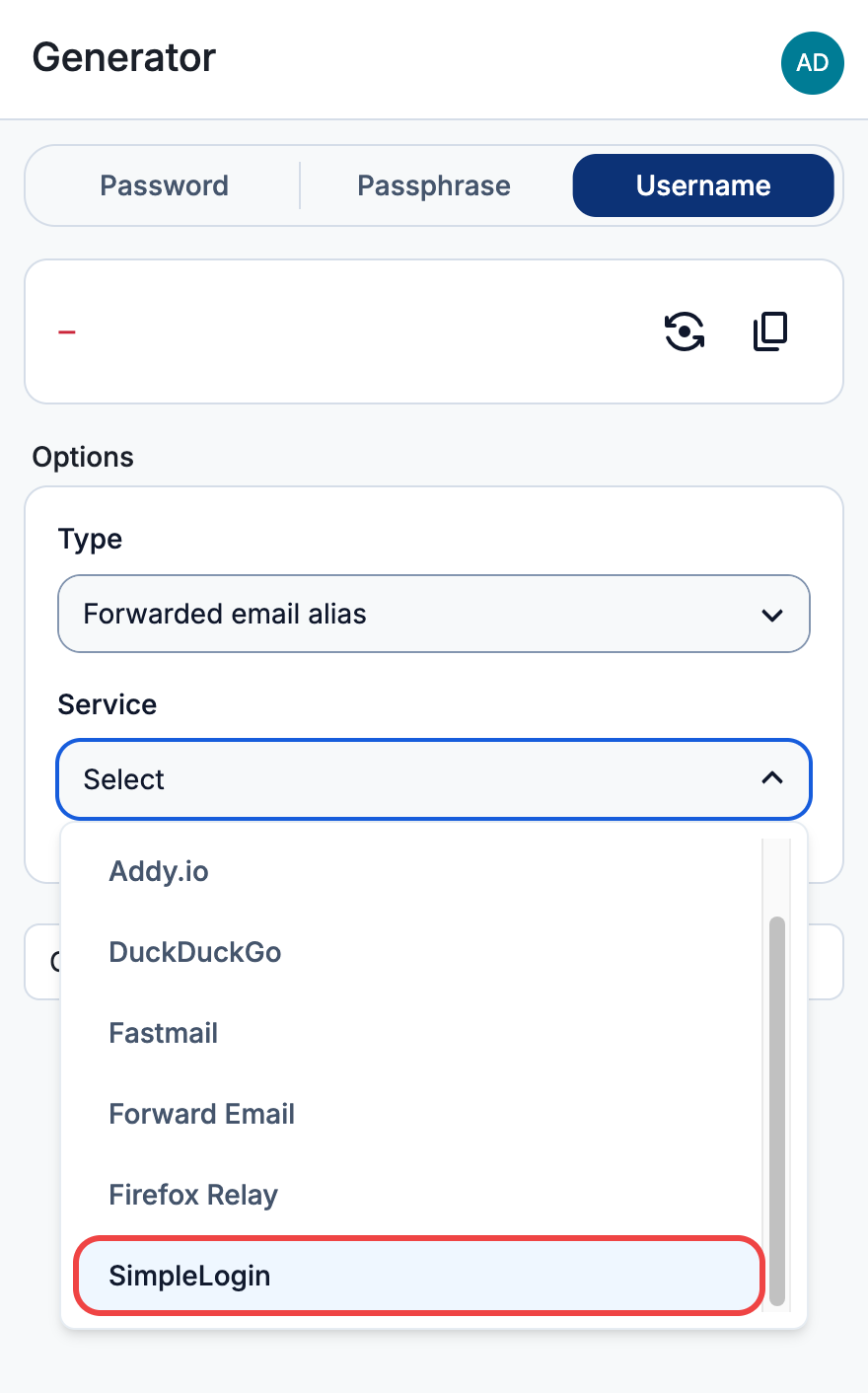
In Service, pick SimpleLogin. Bitwarden has no separate entry for Alias Email, and Alias Email speaks the same language as SimpleLogin; the server URL in the next step sends everything to Alias Email.
4. Paste the key and the server URL
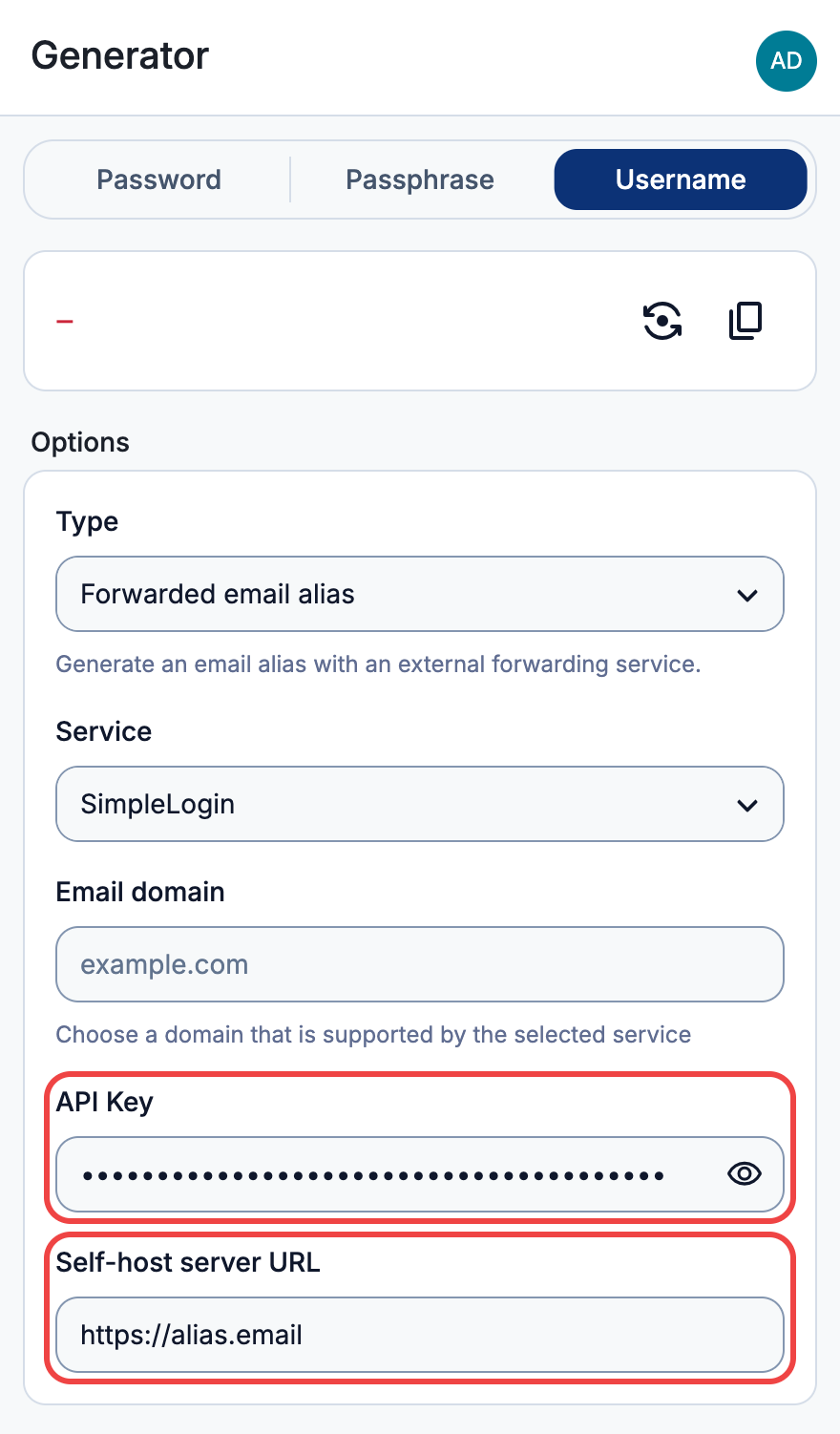
- Leave Email domain empty: the alias is created on your default domain.
- Paste your Alias Email key into API key.
- In Self-host server URL enter
5. Generate an alias
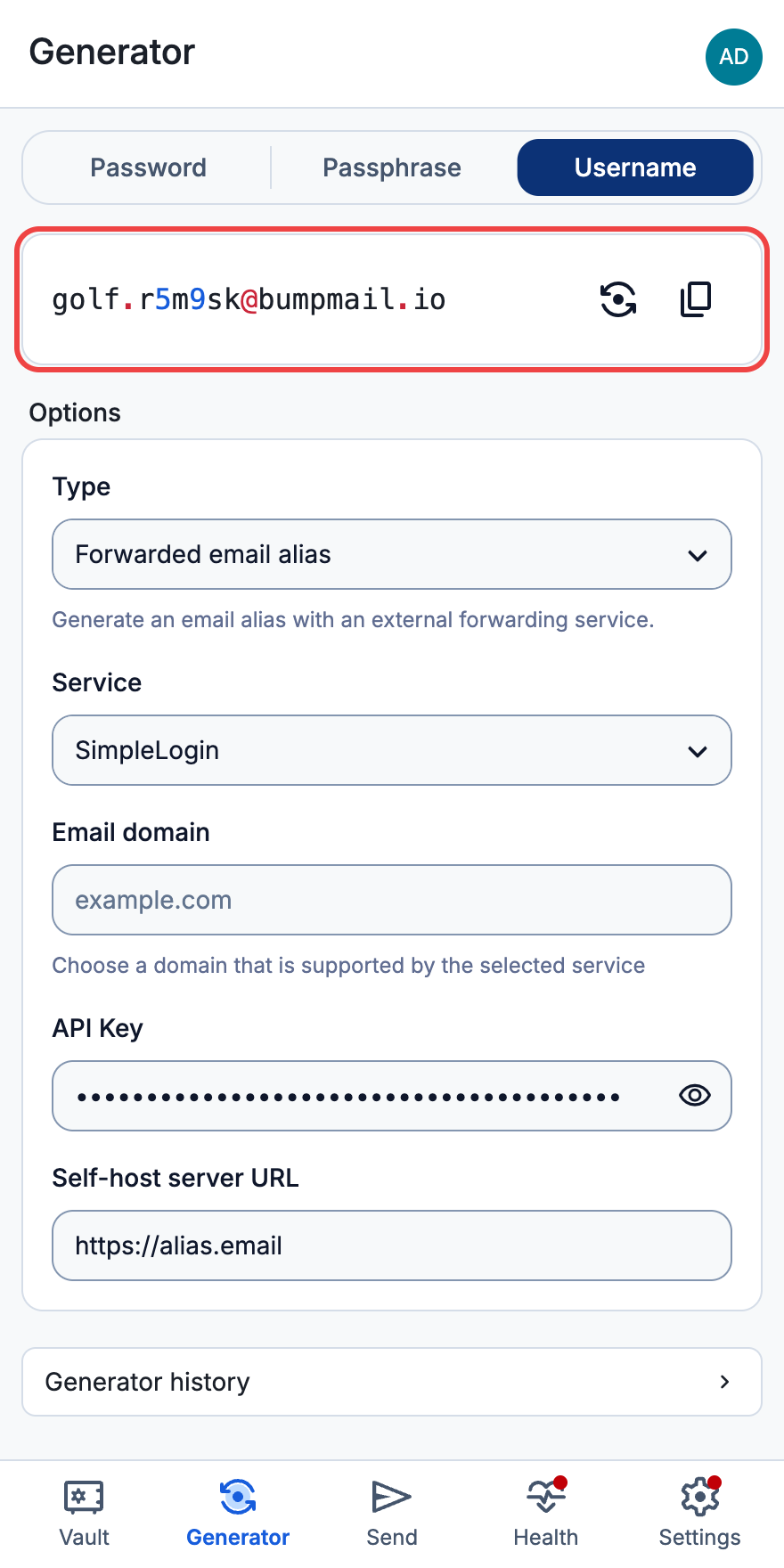
Click the generate button. A new alias appears at the top, and it's already in your Alias Email account, forwarding to your inbox.
The Bitwarden web vault (vault.bitwarden.com) can't use it: it only allows requests to the official SimpleLogin server. Use the browser extension or the apps instead.
Step 3. Use it when you sign up
Bitwarden remembers these settings. Next time a site asks for your email, generate the username in Bitwarden: from the extension's Generator, or with the generate button next to the Username field when you add a new login. Each site gets its own alias, and you can turn it off on your dashboard whenever that site starts sending spam.
What you get
- When Bitwarden knows the site, for example when you add a login for github.com, the alias is named after it:
github.x7k2p9@your-domain. From the Generator tab it gets a random word instead, likewhiskey.texc3j@your-domain. - It is created on your default domain.
- It counts toward your plan's alias limit and daily alias creation limit.
Troubleshooting
- Invalid API key. Check that you copied the whole key. If in doubt, create a new key in Settings.
- Alias limit reached. You have used all the aliases (or the daily creations) your plan allows. Delete aliases you don't need or upgrade your plan.
- Email address not confirmed. Confirm your email address in Alias Email first, then try again.
What's next?
- How to create an email alias manually.
- Use your own domain for generated aliases.